zoom meeting transcription: Easy Steps to Accurate Capture
Discover how to achieve accurate zoom meeting transcription with actionable steps, pro tips, and best practices for flawless transcripts.
Let's face it: scribbled meeting notes just don't cut it. They’re often incomplete, missing the crucial details that really matter. A searchable, accurate Zoom meeting transcription, on the other hand, is a game-changer. It’s not just a record; it's a powerful tool that turns fleeting conversations into a valuable, organized asset for your entire team.
Why You Need Accurate Meeting Transcripts
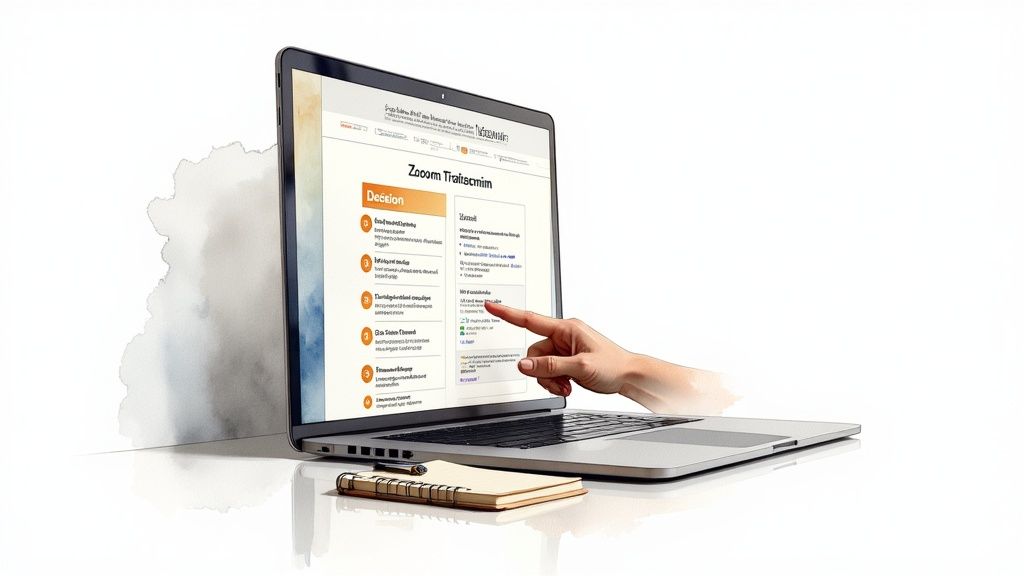
We've all been there—trying to decipher handwritten notes days after a meeting, only to realize the context is lost. A detailed transcript eliminates that problem entirely. It becomes the single source of truth, boosting your team's productivity and keeping everyone on the same page.
Think about it: you could turn a one-hour strategy session into a searchable database of key decisions. Or pull direct quotes from customer feedback to build powerful training materials. This is more than just a convenience; it's a smarter way to work.
This move away from manual note-taking is part of a much bigger trend. The global transcription market was already worth around $21 billion in 2022 and is expected to climb past $35 billion by 2032. A huge chunk of that growth comes from AI-powered services designed for the virtual meetings we all live in now. You can see more on this trend over at Superagi.com.
Turn Your Conversations into Assets
When you have a precise transcript of your meeting, you unlock some serious benefits.
- No More "Who Said What?": With clearly documented action items and decisions, there’s no room for confusion. You can instantly search for who agreed to a task and what the deadline is.
- Make Meetings More Inclusive: Transcripts are a huge help for team members who are deaf, hard of hearing, or non-native speakers. It ensures everyone has equal access to the information.
- Get More Mileage From Your Meetings: A single conversation can be a goldmine for new content. Slice it up for blog posts, case studies, social media snippets, or internal training guides. For more ideas on content strategy, check out the Typist blog.
A great transcript doesn't just record what was said. It gives you a chance to revisit, analyze, and act on conversations with total clarity.
This is exactly where tools like Typist come in. It closes the gap between talking about something and actually getting it done by giving you a fast, accurate, and simple platform to work with.
Transcribe a 1-hour recording in under 30 seconds
Upload any audio or video file and get a full transcript with timestamps
How to Get a Flawless Zoom Recording
Great transcripts don't just happen; they start with great audio. Before you even think about uploading a file, you need to focus on capturing the cleanest possible sound during your Zoom meeting. It's simple, really: giving a transcription tool clear audio is like giving a chef fresh ingredients. The final dish will be infinitely better.
Even small tweaks to your setup can make a huge difference, and the biggest win always comes from your microphone.
Your laptop's built-in mic might be convenient, but it's a magnet for keyboard clicks, room echo, and every other background sound that muddies your recording. For something that's built for clear online communication, a dedicated mic like the MXL AC-404 USB Powered Microphone designed for web conferencing can be a fantastic upgrade.
Where you are matters, too. Try to find a quiet spot, away from the usual culprits—barking dogs, humming refrigerators, or nearby conversations. And don't forget basic meeting etiquette! Asking everyone to mute their mics when they aren't talking is one of the easiest ways to prevent crosstalk and background noise from bleeding into the final recording.
Key Zoom Settings for Better Transcription
Beyond your physical setup, a couple of key settings inside Zoom itself are critical for creating a transcript-ready recording. The most important one? Recording separate audio tracks for each speaker.
This table breaks down the essential settings you'll want to check before you hit record.
| Setting | Recommended Option | Why It Matters for Transcription |
|---|---|---|
| Record a separate audio file for each participant | Enabled | This is the gold standard. It gives the AI a clean, isolated track for each person, ensuring speaker labels are spot-on. |
| Optimize for 3rd party video editor | Enabled | This ensures the recording is in a standard format, which often leads to better processing by transcription tools. |
| Audio Quality | High Fidelity (Original Sound) | If available on your plan, this setting captures richer, more detailed audio, reducing ambiguity for the transcription AI. |
Activating "Record a separate audio file for each participant" is a total game-changer. You’ll find it in your Zoom settings under the "Recording" tab.
When you have this turned on, Zoom saves an individual audio file for every single person in the meeting. Uploading these separate files to a tool like Typist allows the AI to distinguish between speakers with incredible precision. Your final transcript will have accurate speaker labels, making it a breeze to follow who said what.
Without this setting, the AI has to make an educated guess about when one person stops talking and another begins, which is a recipe for errors. If you're tackling a complex project and need some advice, feel free to reach out to us through our contact us page.
By isolating each speaker's audio, you eliminate the confusion of overlapping conversations and give the transcription AI the cleanest possible data to work with. Honestly, this one setting is the secret to flawlessly labeled meeting notes.
Your Workflow for Transcribing Zoom Meetings with Typist
Transcription that works in 99+ languages
Accurate results regardless of accent or language — just upload and go
Alright, your Zoom meeting is done and dusted. Now you've got a recording, but what you really need is a searchable, usable document. Let's walk through how to turn that raw audio into an accurate transcript, quickly and without any headaches. The goal is to get this done with as few clicks as possible.
First things first, you need to find that recording file. If you recorded locally, Zoom probably tucked it away in a folder on your computer named with the meeting date and time. Look for an audio file inside, usually an M4A. If you used cloud recording, just hop over to your Zoom web portal, find the "Recordings" section, and download the audio-only file.
This quick visual breaks down the essentials for getting clean audio, which is the secret sauce for a great transcript.
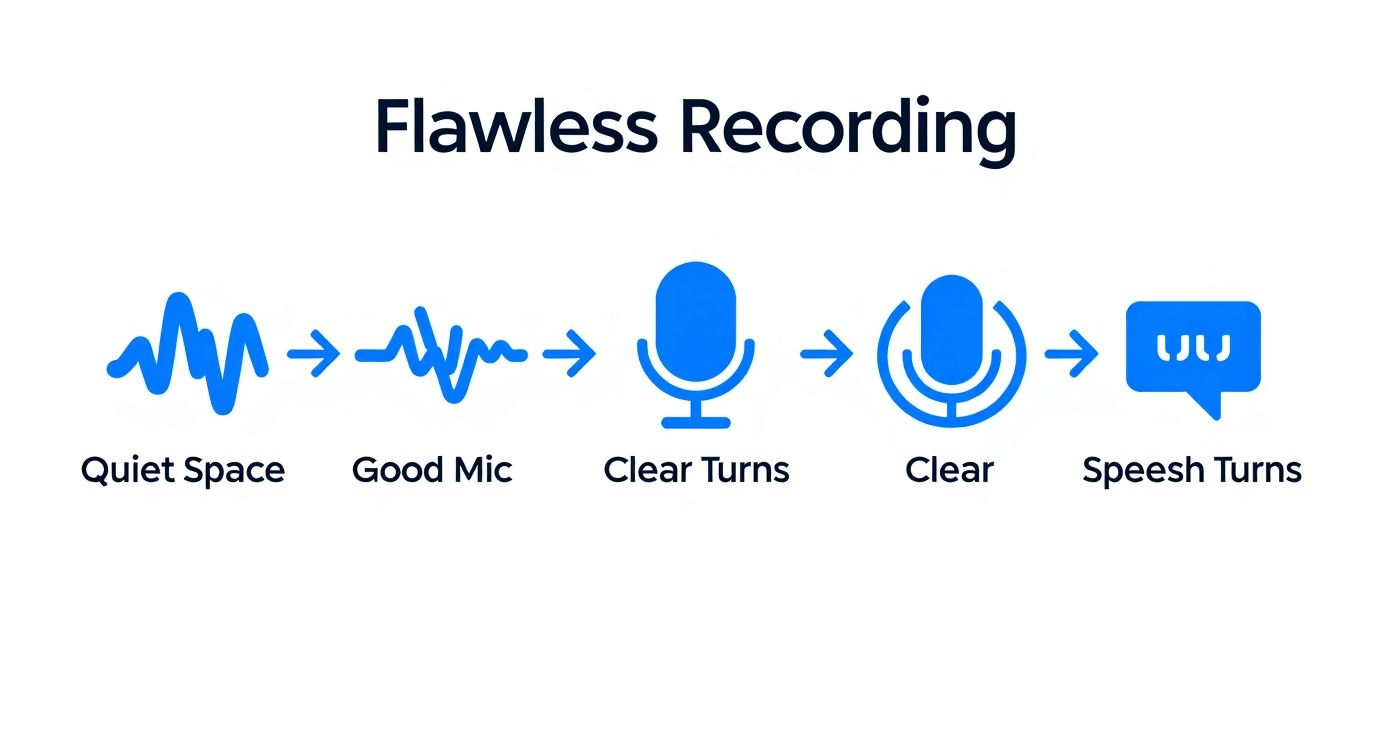
As you can see, simple things like finding a quiet spot and using a decent mic make a huge difference in the final quality.
From Audio File to Accurate Text
Got your M4A file handy? Great. Now it's time to upload it to Typist. The platform is designed to be dead simple—just drag and drop your file right onto the dashboard. No complicated settings or configurations to worry about. You can get a feel for the interface and explore Typist's features over on the main site.
Once you drop the file in, the AI takes over. It crunches through the audio, figures out who is speaking (especially handy if you recorded separate audio tracks), and turns all that talk into text. This part is surprisingly fast. I've seen it chew through an hour-long meeting in just a few minutes.
The real magic is how the AI handles the details. It's not just turning sounds into words; it's adding punctuation and sorting out different speakers to give you a transcript that's readable right from the get-go.
This whole process is built for speed. You can have a polished transcript ready for your team almost as soon as the meeting wraps up, saving you from the soul-crushing task of typing it all out by hand.
Start transcribing with Typist →
How to Polish and Export Your Transcript
https://www.youtube.com/embed/NkKPqXsV9OA
Once Typist shoots your Zoom meeting transcription back to you, you're about 95% of the way there. The AI handles all the grunt work, but a quick human review is what really makes the final document shine. This last part is all about catching the little details.
Your first job is to give it a quick accuracy check. The easiest way to do this is by playing the synchronized audio right inside Typist's editor while you read along. You'll instantly spot and fix any words the AI might have fumbled—think industry jargon, unique acronyms, or the names of people and products.
For instance, if you're discussing "Project Nightingale," the AI might hear that as "night and gale." A quick click and edit ensures your transcript matches the actual conversation.
Remember, the goal here isn't to re-transcribe from scratch. You're just adding that final layer of human context and precision that turns a good transcript into a flawless, authoritative record of what was said.
Fine-Tuning Speaker Labels and Formatting
Next up, take a look at the speaker labels. Typist is usually spot-on, especially if you recorded separate audio tracks in Zoom, but it never hurts to give them a quick once-over. Just make sure the right name is attached to the right dialogue all the way through.
With the text and speakers locked in, you're ready to export. Typist offers a few handy formats depending on what you need to do next:
- .TXT: This is your go-to for a clean, simple text file you can copy and paste anywhere.
- .DOCX: Perfect for when you need to create formal meeting minutes or a report in Microsoft Word.
- .SRT: The industry standard for video captions, ready to drop right into your video editing software.
Which format you choose really just depends on your end goal. If you're turning the conversation into a blog post, DOCX is a great starting point. If you need to add captions to make the video recording more accessible, SRT is what you want.
Curious about the tech that makes this so fast and accurate? You can get the full story on how Typist built the fastest AI audio transcription.
Finding Actionable Insights in Your Transcripts
Turn podcast episodes into blog posts Start transcribing
A finished Zoom meeting transcription isn't just a record of who said what. It's a goldmine of business intelligence just sitting there, waiting for you to dig in. Once you stop thinking of transcripts as simple notes and start seeing them as data, you can uncover insights that genuinely shape your strategy.
As you build up a library of searchable transcripts in Typist, you'll start to see patterns emerge over time. Think about it: you could instantly scan every sales call from the last quarter to see which closing lines actually worked. This is how you turn routine conversations into a real competitive edge.
Uncovering Hidden Data Points
Transcripts let you put numbers to qualitative conversations. Suddenly, you can track recurring customer problems, check in on the progress of big projects, or even get a read on team morale just by searching for specific words and phrases.
Here’s what that looks like in practice:
- Customer Feedback: Search for words like "frustrated," "confused," or "love this feature" across your support calls. You’ll quickly find out what needs fixing and what you should be doubling down on.
- Sales Intelligence: Want to know what objections pop up the most? Search for competitor names or common questions about pricing. The answers are right there in the text.
- Project Management: Need to confirm who owns a task? Search for a team member's name next to phrases like "I'll handle that" or "by Friday."
This kind of analysis turns messy, unstructured conversations into strategic information you can act on. AI tools are getting incredibly good at this, capable of pulling out key themes, decisions, and sentiment just minutes after a meeting wraps up.
Think of your transcripts as a single, searchable database. It allows you to ask big-picture questions and get answers straight from the source—the words of your own team and customers.
Once you have the raw text, smart tools can do the heavy lifting. For example, you can use something like Shortgenius for insightful summaries to quickly pull out the most important takeaways without reading every single word.
Upload MP4 or MOV, export SRT subtitles. Works with Premiere, Final Cut, DaVinci Try it free
Have Questions About Zoom Transcription? We've Got Answers
Even with a solid workflow in place, you probably still have a few questions. That’s smart. Before you trust any tool with your meeting recordings, you want to be sure it's the right fit. Let’s clear up some of the most common things people ask.
Just How Accurate Is AI Transcription for Zoom Meetings?
I get this one a lot. The AI engine we use at Typist can hit 95% accuracy—sometimes even higher. But there’s a catch: the quality of the transcript depends entirely on the quality of your audio. Think "garbage in, garbage out."
If you have clear speakers, a decent microphone, and not too much background chaos, you’ll get a fantastic result. If the audio is full of industry-specific jargon or heavy accents, you'll probably need to spend a few minutes cleaning it up. The good news is that the AI still does all the heavy lifting, saving you a ton of time.
Is It Safe to Upload My Private Recordings?
This is a big one. You’re right to be concerned about security, especially with confidential conversations. Any professional transcription service should make security a top priority. For us at Typist, it's fundamental. We encrypt all your data, both when it's being uploaded and while it's stored on our servers. Your conversations stay yours.
A quick tip from my own experience: Never use a service that isn't crystal clear about its security measures. Your privacy is too important to risk, so only work with platforms that are upfront about how they protect your data.
You can see exactly how seriously we take this by reading up on our privacy practices.
What About Different Accents and Languages?
Yep, we've got you covered. Modern AI is trained on a huge variety of voices from all over the world, so it's gotten really good at understanding different accents and dialects. Typist supports over 99 languages, making it perfect for international teams.
With Zoom hosting an incredible 3.3 trillion meeting minutes every year, a huge chunk of those conversations involve people from different countries. As highlighted in some recent Zoom statistics, global meetings are the norm now. So whether your colleagues are calling in from London, Lisbon, or Lima, the AI can keep up.