Transcribe Audio to Text Online the Easy Way
Discover how to transcribe audio to text online with proven strategies. Our guide shares the best tools and tips for fast, accurate AI transcription.
Let's face it: manually transcribing audio is a soul-crushing task. I've been there, headphones on, hitting rewind every ten seconds. These days, when I need to transcribe audio to text online, it’s not just about getting my time back—it’s about making my content work harder for me by making it searchable, accessible, and easier to repurpose.
Think about turning a sprawling, hour-long interview into a clean, searchable document in just a few minutes. That's the kind of practical problem we can solve now.
Why Online Transcription Is No Longer a Luxury
Honestly, who has the time to sit and type out every single word from a recording? It's just not an efficient way to work anymore. In a world overflowing with podcasts, webinars, and videos, being fast and accurate gives you a serious edge.
This isn't just a small trend; it's a huge shift in how we manage audio and video. The market for these services is expected to hit USD 2.5 billion in 2025, and it’s not slowing down, with analysts predicting a growth rate of around 15% through 2033. That growth is coming from everywhere—media, education, marketing, you name it.
Unlocking Value from Your Audio Content
The real magic happens when you turn your audio from something you just listen to into an active asset you can actually use. Here’s what that looks like in the real world:
- Content Creators: I’ve seen podcasters take one episode and spin it into show notes, a full blog post, and a dozen social media snippets, all from the transcript. It also opens up your content to people who are deaf or hard of hearing and gives search engines something to crawl.
- Researchers and Journalists: Imagine getting a transcript of an interview and being able to hit Ctrl+F to find that one killer quote. It beats scrubbing through the audio for an hour, hands down.
- Business Teams: We’ve all been in meetings where great ideas get lost. A transcript creates a searchable record, so you can quickly pull up decisions and action items without having to ask, "Wait, who was supposed to do that?"
This is exactly what modern AI productivity tools are all about—automating the grunt work so you can focus on what matters.
Making the Process Simple and Accurate
The best part is that you don't need any special skills to do this anymore. Getting started is ridiculously easy. With a tool like Typist, you just upload your file, and a few minutes later, you have a surprisingly accurate transcript ready to go.
This means anyone can use it. A student can get notes from a lecture, or a marketing team can quickly create subtitles for a new video ad. The focus has shifted from the mind-numbing labor of typing to the creative possibilities of what you can do with the text.
Turn podcast episodes into blog posts
Upload your recording, get a transcript, export to any format. Repurpose content in minutes
Preparing Your Audio for a Flawless Transcription
Getting a great transcript starts long before you upload a file. The old saying 'garbage in, garbage out' is especially true for AI transcription. If you spend just a few minutes prepping your audio source, you can save yourself a ton of editing time on the back end.
Think of an AI tool like Typist as a super-attentive listener. It's incredibly good at picking up speech, but just like a person, it gets confused by background noise, echoes, and unclear voices. Your job is to give it the cleanest signal you can.
Tame That Background Noise
This is, without a doubt, the most important thing you can do. That subtle hum from an air conditioner or distant traffic you barely notice? The AI hears it loud and clear, and it can seriously muddy the waters.
Luckily, the fixes are usually pretty simple:
- Find a Quiet Room: Small spaces with soft surfaces are your best friend. Look for rooms with carpets, curtains, or even a bookshelf full of books. These things absorb sound and kill echo.
- Silence Everything: Shut the door and close the windows. Turn off fans, TVs, and any other buzzing appliances. And don't forget to put your phone and computer on silent!
- Get a Better Mic: Your laptop’s built-in microphone will work in a pinch, but even a cheap external mic can make a world of difference. Try to position it close to whoever is speaking, but not so close that you hear every single breath.
I've seen so many people make the mistake of recording in a big, empty conference room with bare walls. The echo and reverb in those spaces are a nightmare for transcription AI, no matter how advanced it is.
Make Sure Everyone Can Be Heard
Once your environment is quiet, shift your focus to the people speaking. When speakers talk over each other or mumble, the AI is forced to guess, and that’s when mistakes creep in.
A simple trick for interviews or meetings is to set a quick ground rule: let’s try to speak one at a time. It might feel a bit formal, but you’ll be thankful for it when you get a clean, easy-to-read transcript back.
Pick the Right File Format
Finally, a quick word on the file itself. While tools like Typist are built to handle all sorts of formats (MP3, M4A, MP4, you name it), starting with a high-quality file gives the AI more information to analyze.
If you’re working with a massive audio file, you might want to shrink it down for a faster upload. For those giant, high-quality recordings, it's often a good idea to look into compressing WAV files for optimal upload. This helps strike that perfect balance between quality and file size, making the whole process smoother from start to finish.
Your First Transcription: From Upload to Export
Three free transcriptions. No credit card.
See how fast and accurate Typist is — upload your first file in seconds
Jumping into a new tool can sometimes feel a bit much, but getting your first audio file transcribed online is surprisingly quick. Let's walk through the whole process, from uploading a raw recording to exporting a polished document, using a platform like Typist as our example. You'll see just how fast you can get from a messy audio file to a clean, usable transcript.
The path is pretty straightforward. It all starts with getting your audio into the system, letting the AI do the heavy lifting, and then giving the text a quick human touch before sending it on its way.
This visual guide shows the ideal workflow for a top-notch transcription.
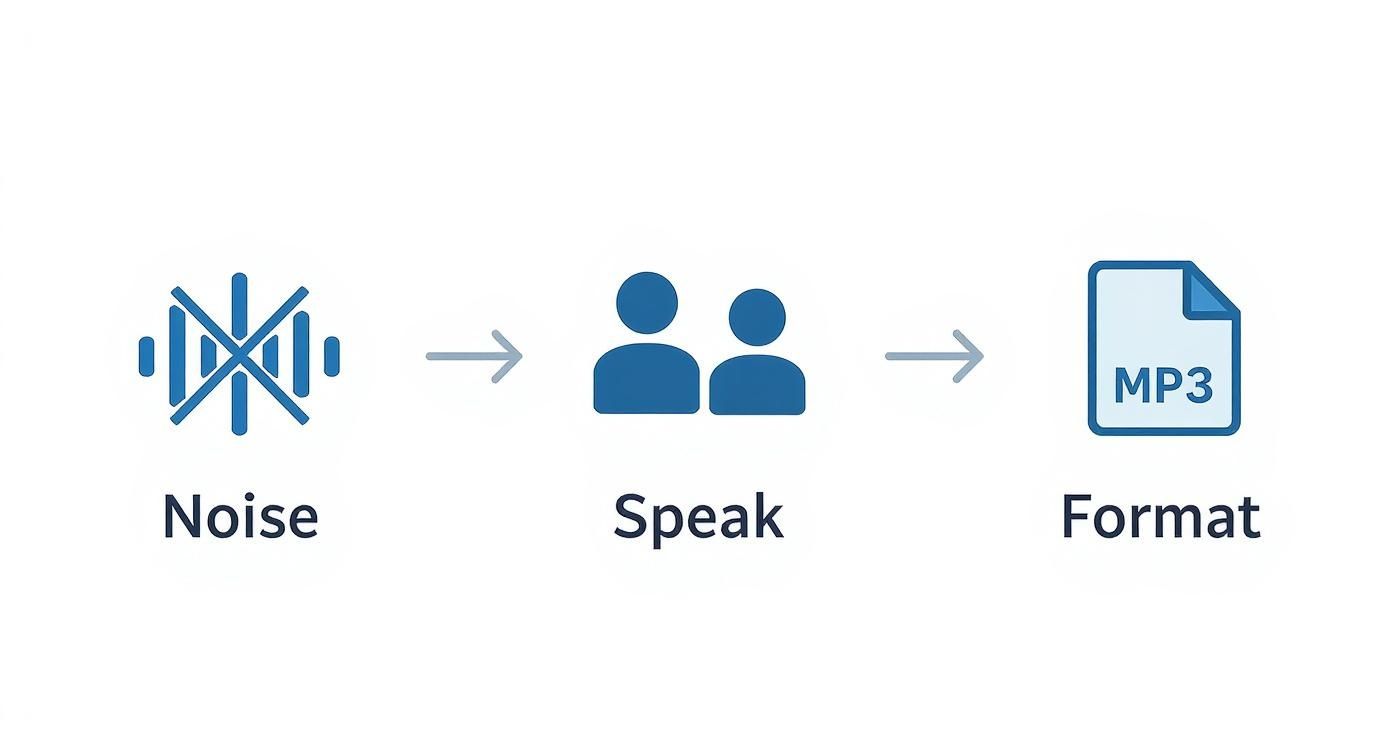
As you can see, a clear recording in the right format makes a huge difference in the quality you get back.
Getting Your First File Uploaded
First things first, you need to get your media file into the platform. With a tool like Typist, this is as simple as dragging and dropping the file right onto the dashboard. No navigating through confusing menus or complicated setups. Just drag, drop, and you're good to go.
Most modern transcription services are built to handle the file types you use every day. Whether you're working with audio or video, you're usually covered.
Common Audio and Video Formats for Transcription
Ever wondered if your file format is the best one for the job? Here’s a quick reference guide for the most common formats you’ll probably encounter.
| File Format | Common Use Case | Compression Level | Recommended for Transcription? |
|---|---|---|---|
| MP3 | Music, podcasts, general audio | High (Lossy) | Yes. Great balance of quality and small file size. |
| WAV | Professional audio recording, mastering | None (Lossless) | Yes. Highest quality, but very large files. |
| M4A | Apple devices, online streaming | Medium (Lossy) | Yes. Good quality, smaller than WAV. |
| MP4 | Web video, social media clips | High (Lossy) | Yes. The standard for video with audio tracks. |
| MOV | Apple QuickTime video, editing | Varies (Often Lossless) | Yes. High-quality video, common in editing workflows. |
While lossless formats like WAV are technically the "best" quality, a high-bitrate MP3 or M4A is usually more than enough for excellent accuracy and will upload much faster.
Once your file is selected, the upload begins. How long it takes just depends on your internet speed and how big the file is, but for most files, it's over in a flash.
My Two Cents: If you're dealing with a massive, multi-gigabyte WAV file from a professional recorder, I'd suggest converting it to a high-quality MP3 first. It can slash your upload time and you likely won't notice any difference in the final transcript's accuracy.
Telling the AI What to Do
With your file safely uploaded, you'll see a few important options before hitting that "Transcribe" button. Taking a moment here is key, as these settings give the AI crucial context and lead to a much better result.
First, you'll need to tell it what language is being spoken. Typist supports over 99 languages, so whether your interview is in English, Spanish, or Japanese, the AI is ready. This step is non-negotiable—get it wrong, and you'll get gibberish back.
Next, you might have a choice of transcription "models." Some are built for pure speed, while others are fine-tuned for the highest possible accuracy. For an important client interview or the final script for a video, always go for the high-accuracy option. If you just need some quick notes from a team meeting, a faster model will do the trick.
Settings locked in? Hit the button. The AI now takes over, analyzing the sound, figuring out who is speaking, and turning it all into text. An hour-long recording can be finished in just a few minutes—a job that would easily take a person several hours to type out by hand.
Polishing the Transcript in the Interactive Editor
Let's be real: no AI is flawless. But a great tool makes the final review and cleanup process a breeze. After the AI is done, you'll land in an interactive editor that syncs your audio playback directly with the transcribed text.
This is where the platform really shines. If you see a word that looks a bit off, just click on it. The audio will instantly jump to that exact spot in the recording, so you can listen and confirm what was said. No more tedious scrubbing back and forth trying to find the right timestamp.
In the editor, you can quickly:
- Fix any misheard words or misspelled names.
- Tweak the punctuation to improve readability.
- Label or correct speaker names (e.g., changing "Speaker 1" to "Jane Doe").
- Combine or split paragraphs for better flow.
This quick human review is what elevates a decent automated transcript into a polished, professional document you can confidently share.
Exporting Your Finished Work
Once you're happy with the edits, the final step is to get your transcript out in the format you actually need. A flexible tool will give you plenty of choices. With Typist, you can download your work as:
- TXT: A simple, plain text file. Perfect for quickly copying and pasting.
- SRT: The standard format for video captions and subtitles, complete with timestamps.
- DOCX: A formatted document ready to be opened in Microsoft Word.
- PDF: A clean, non-editable version for sharing or archiving.
This flexibility means your finished text can drop perfectly into your next blog post, video project, or research paper without any hassle.
Start transcribing with Typist →
Turning a Good Transcript Into a Great One
Even the very best AI transcription gets you about 95% of the way there. That last 5% is where you come in. It’s the human touch that transforms a solid draft into a professional, polished document you can share with confidence. This is the final polish that makes all the difference.
This refinement step is so important because AI, for all its power, can stumble over the little things. It might misinterpret industry jargon, get thrown off by a thick accent, or get confused when people talk over each other. Honestly, taking a few minutes to review and edit your transcript is always time well spent.
Quick Edits That Make a Big Difference
When you first open your transcript in a tool like Typist, it can look like a lot to tackle, but it’s usually much quicker than you think. The interactive editor syncs your audio right to the text, so you can click on any word and instantly hear it spoken. This makes finding and fixing errors incredibly fast.
To get the most bang for your buck, focus your energy on these key areas first:
- Speaker Labels: The AI is smart, but it often defaults to generic labels like "Speaker 1" or might even mix up who's talking. A quick pass to assign the correct names (like changing "Speaker 2" to "Dr. Evans") adds a ton of clarity right away.
- Punctuation and Paragraphs: The AI’s punctuation is a good start, but it doesn't always nail the natural flow of a conversation. I always break up long, chunky paragraphs and tweak a few commas and periods to make the whole thing much easier to read.
- Proper Nouns and Jargon: This is a big one. The AI might spell a company name phonetically (think "Sales Force" instead of "Salesforce") or mishear a technical term. A quick "find and replace" can fix these types of recurring mistakes in just a few seconds.
The demand for accurate transcripts is exploding. The U.S. transcription market alone was valued at USD 30.42 billion in 2024, and that growth is fueled by speech recognition tech that now hits over 98% accuracy.
Slash Your Editing Time with Smart Shortcuts
Efficient editing is all about building a good workflow. Instead of just pointing and clicking with your mouse, learning a few keyboard shortcuts can speed up your process dramatically. Inside the Typist editor, you can use simple commands to play, pause, and rewind the audio without ever taking your hands off the keyboard.
My personal pro tip is to listen to the audio back at 1.25x speed while I read along with the text. It’s just fast enough to save time but still slow enough to catch mistakes and make corrections as I go. This one little trick can easily cut my review time in half.
Once you’ve perfected the text, it’s ready for anything you need—from creating video captions to writing up detailed show notes. For more ideas on improving your content creation workflow, check out the articles on the Typist blog. That final human touch is what ensures your project is professional, accurate, and truly ready for your audience.
Advanced Features That Boost Your Productivity
Still typing out transcripts by hand? Upload a file
Once you get past the basic job of converting speech to text, you start to see the features that can really save you time. Modern tools to transcribe audio to text online are about much more than just producing a block of words. The best ones are loaded with smart capabilities designed to fix the tedious, real-world problems we all face.
Think of these features less like add-ons and more like force multipliers for your work. They’re what make a tool a genuine part of your workflow, not just a simple utility.
Automatic Speaker Identification
Let's start with a big one: automatic speaker identification, sometimes called diarization. This is a total game-changer. Instead of listening back and manually labeling "Speaker 1," "Speaker 2," and so on, the AI figures it out for you. If you're transcribing interviews, podcasts with multiple guests, or team meetings, this feature alone can shave hours off your work.
Imagine you're a UX researcher with an hour-long customer interview. With speaker identification, you don't get a confusing wall of text. You get a clean script, neatly labeled "Interviewer" and "Participant." This makes finding key quotes and analyzing feedback incredibly fast. A tool like Typist delivers this organized dialogue without you having to lift a finger.
This push for smarter features is a huge reason the global transcription market, valued at around USD 21 billion in 2022, is expected to jump past USD 35 billion by 2032. It's all about AI-driven tools that provide real, measurable efficiency.
Timestamps and Custom Vocabulary
When you’re working with audio or video, knowing when something was said is just as important as knowing what was said. This is where word-level timestamps are a lifesaver. They connect every single word in the transcript to its precise moment in the audio file.
- Video Editors: Need to find a specific soundbite? A timestamped transcript lets you jump directly to it in your editing timeline, no more endless scrubbing through footage.
- Podcasters: You can easily pull short, compelling audio clips for social media by finding the exact start and end times in the transcript.
Another feature that makes a huge difference is custom vocabulary. If you work in a specialized field like medicine, law, or engineering, you know the pain of an AI mangling your industry-specific jargon. By adding a list of unique terms, acronyms, or company names, you essentially teach the AI your language. It learns to recognize those words correctly every time, saving you from making the same tedious edits over and over.
The technology that powers this kind of accuracy is always getting better, which is how it's possible to build the fastest AI audio transcription services today. These aren't just one-size-fits-all tools; they’re designed to adapt to the messy, complex audio of the real world and give you a transcript that’s genuinely ready to use.
Common Questions About Online Transcription
Dipping your toes into the world of AI transcription naturally brings up a few questions. It's smart to be curious, especially when you're handing over important audio and video files. We've rounded up the most common queries we hear to give you clear, direct answers so you can get started with confidence.
When most people first decide to transcribe audio to text online, the first thing they want to know is how good the final result will actually be.
How Accurate Is AI Transcription Compared to a Human?
This is the million-dollar question, and frankly, the answer is pretty impressive. A top-tier AI tool like Typist can hit up to 99% accuracy on clear, well-recorded audio. For a huge number of projects, that level of precision makes AI a much faster and more affordable choice than hiring a manual transcriptionist.
Of course, context is key. If you're working with audio that has a lot of background noise, speakers with thick accents, or people talking over each other, a quick human review is still your best bet for a perfect transcript. The AI does all the heavy lifting, and you just come in for the final polish.
Accurate results regardless of accent or language — just upload and go Start transcribing
Is It Safe to Upload Sensitive Audio Files?
Security is a totally valid concern. We get it. You might be dealing with confidential interviews, private meetings, or sensitive research data. The short answer is yes, it’s safe—as long as you pick a secure, reputable platform.
Services like Typist are designed with security in mind from the ground up. We use strong encryption for your files, both while they're being uploaded and while they're stored on our servers. This keeps your confidential information protected from unauthorized access at every step.
Any trustworthy service will be upfront about how they handle your data. You can learn more about how your files are protected by reviewing the Typist privacy policy. It’s all there to give you peace of mind, knowing your work is treated with the respect it deserves.
What Is the Best Audio Format for Transcription?
While today's transcription tools are incredibly flexible, the format of your audio file can definitely nudge the results one way or the other. If you're aiming for the absolute best quality and the highest possible accuracy, uncompressed formats are the way to go.
- Best Quality: Lossless formats like WAV or FLAC are the top contenders. They preserve all the original audio data, giving the AI the cleanest signal to work with.
- Best Balance: For most everyday projects, a high-quality MP3 is more than enough. It strikes a great balance between clear audio and a smaller, more manageable file size that uploads quickly.
At the end of the day, the best format is simply the cleanest one you have. A crystal-clear MP3 will always give you a better transcript than a noisy, muffled WAV file. Give the AI a solid starting point, and you’ll get a better result in return.