Free Video to Text Converter: Your Ultimate Guide
Discover top free video to text converter tools. Learn how to transcribe videos to text accurately with our easy, actionable guide for free.
It’s easy enough to hit record, but all the brilliant ideas, quotes, and data points in your video are essentially locked away. A free video to text converter is what sets that information free, turning your spoken words into searchable, accessible, and endlessly reusable content. It’s the fastest way to transform a video file into a powerful asset for creating new content or digging into analysis.
Why You Should Convert Video to Text
Turning your videos into text is about so much more than just getting a script. When you transcribe a video, you’re actually creating a flexible marketing tool that can dramatically boost the return on your initial production efforts. Think of a transcript as the raw material for a dozen new pieces of content, not just a simple document.
The most obvious win is a massive bump for your Search Engine Optimization (SEO). Search engine bots can’t watch a video to figure out what it's about, but they’re experts at reading text. A transcript hands them a detailed, keyword-rich map of your video’s content, making it way more likely to show up in search results. That five-minute product demo or hour-long webinar can suddenly start ranking for all sorts of relevant searches.
Maximizing Your Content Reach
Beyond just SEO, a transcript unlocks a ton of content repurposing possibilities. Let's say your marketing team just wrapped up a great webinar. With that one transcript, they can now:
- Spin-off a Blog Post: Easily edit the transcript into a full-length, SEO-friendly article.
- Create Social Media Gold: Pull out the best quotes, stats, and soundbites for punchy posts on X, LinkedIn, or Instagram.
- Build a Lead Magnet: Combine the key takeaways from a video into a downloadable PDF guide or a short e-book.
- Boost Accessibility: Use the text to create captions for viewers with hearing impairments or for people watching with the sound off.
This isn't just about being more efficient. It's about getting more mileage out of the hard work you already did. One video can power your content calendar for weeks, and it all starts with a simple transcript.
Making Information Actionable
For anyone doing research, studying, or collaborating with a team, a video-to-text converter makes finding information a breeze. Nobody wants to scrub through hours of footage just to find that one specific comment. Once you have a text file, a quick Ctrl+F is all you need to pinpoint exact quotes, data, or key moments in seconds.
This saves a huge amount of time, whether you're reviewing customer interviews, going over lecture notes, or catching up on a meeting you missed. A clean transcript means no important details get lost in the shuffle.
Three free transcriptions. No credit card.
See how fast and accurate Typist is — upload your first file in seconds
Exploring Free Video Transcription Methods
When you need to turn video into text, you've got a few free options. The catch? They all come with trade-offs in accuracy, speed, and how much work you’ll have to put in. Knowing the difference between them will help you pick the right tool for the job.
The old-school way is, of course, manual transcription. This is where you sit down, listen to the video, and type everything out by hand. You can get a transcript that’s nearly 99% accurate, but it's a huge time sink. I've found that it can take four to six hours of solid, focused effort just to transcribe one hour of clear audio. For most projects, that’s just not practical.
Built-In Tools vs. Dedicated AI Converters
A more modern approach is using the built-in tools on platforms like YouTube. Their auto-caption feature is handy because it’s right there, but the quality can be a real mixed bag. If your video has any background noise, multiple people talking over each other, or specialized jargon, the captions often turn into a garbled mess that needs heavy editing.
This is where a dedicated video to text converter free of manual work truly shines. Tools like Typist are built from the ground up for one thing: creating fast, accurate transcripts. They rely on sophisticated speech recognition models that are light-years ahead of the basic features you'll find on general video platforms.
Just look at how the accuracy stacks up.
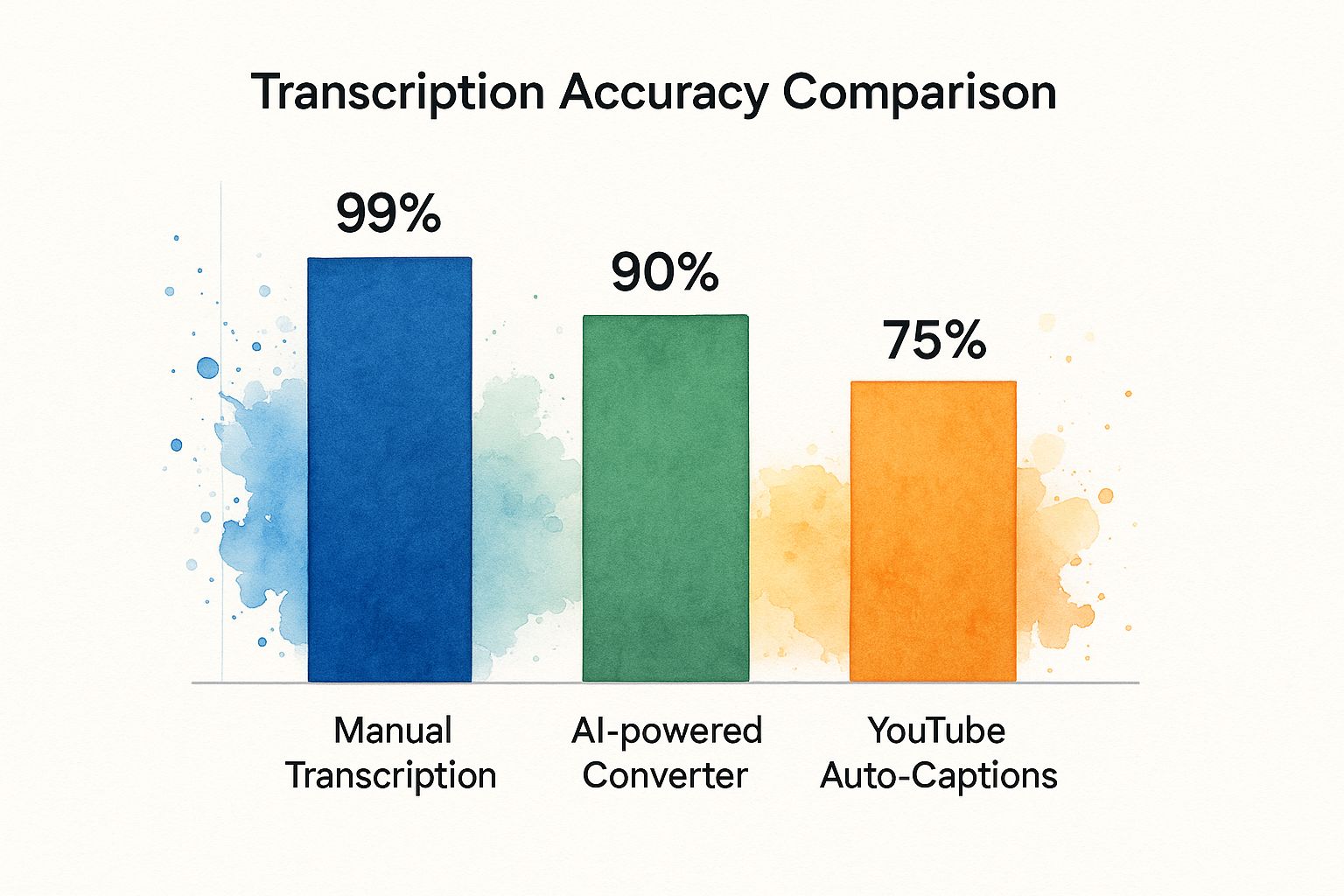
As you can see, a purpose-built AI converter gives you a fantastic balance of speed and precision—something the other methods just can't offer.
Comparing Free Video to Text Methods
To make it even clearer, here’s a quick look at the most common free transcription methods and what you can expect from each.
| Method | Best For | Typical Accuracy | Time Investment |
|---|---|---|---|
| Manual Transcription | Legal, medical, or research content where 100% accuracy is critical. | 99%+ | Very High (4-6 hours per audio hour) |
| Platform Auto-Captions | Getting a rough, unedited draft for personal use or basic accessibility. | 70-85% | Low (initial) to Medium (editing) |
| Dedicated AI Converter | Most professional and creative uses: articles, meeting notes, subtitles. | 90-95%+ | Very Low (minutes) |
Ultimately, the best method depends entirely on your needs. For quick and dirty transcripts, auto-captions might suffice. But for anything that requires accuracy and a quick turnaround, a dedicated AI tool is the clear winner.
Why AI Converters Are So Popular
Dedicated AI transcription tools aren't just a niche product anymore; they've become essential. The technology is so valuable that the global video conferencing transcribing market was valued at $0.806 billion in 2024 and is still growing fast. This boom is driven by the need for searchable, accessible text in everything from education and healthcare to corporate boardrooms.
A high-quality AI transcription tool is built to handle the complexities of real-world audio. It can distinguish between speakers, recognize technical jargon, and filter out background noise far better than a generic, all-in-one platform feature.
For content creators, the possibilities are huge. Think about how much easier it is to auto-generate TikTok captions with AI instead of typing them out manually. An AI tool's real power is its ability to chew through huge amounts of footage and spit out editable text in minutes. If you're curious about the tech that makes this possible, we wrote an article about building the fastest AI audio transcription service.
So, while manual typing and built-in features have their moments, a specialized free video to text converter offers the most efficient path to a high-quality transcript without the headache.
How to Transcribe a Video with Typist
Need subtitles? Show notes? Meeting minutes?
Export your transcript to SRT, PDF, DOCX, or TXT — all from one upload
If you're looking for a video to text converter free from the usual headaches, you've come to the right place. I’ve found that with a tool like Typist, the whole process feels incredibly straightforward. It turns what was once a time-consuming chore into just a few quick clicks. Let's walk through how to get your first transcript done, from uploading the video to grabbing the final text.
First things first, you’ll need to create a free account. Right away, this gets you three free transcriptions every single day, which is pretty generous. Best of all, there's no need to pull out your credit card, so you can genuinely test drive the whole platform without any strings attached.
The Simple Upload and Transcription Process
Once you log in, you'll see the dashboard is clean and uncluttered. There's a big, obvious upload area, so you know exactly where to start.
Here's how it works:
- Get your file in there: Just drag and drop your video file (MP4, MOV, you name it) right onto the page. Or, if you prefer, click the button to browse for it on your computer. Typist handles most common video and audio formats, so you probably won't run into any compatibility issues.
- Tell it the language: Before you kick things off, you need to tell the AI what language is being spoken. It’s been trained on over 99 languages, so whether you're working with English, Spanish, or Japanese, you should get a solid result.
- Hit transcribe: With your file uploaded and the language set, just click the button. The AI immediately starts crunching the audio from your video.
I've been genuinely impressed with the speed here. A full hour-long video is often done in just a few minutes, not the hours I used to wait. You can even watch the progress happen in real-time.
Reviewing and Editing Your Transcript
When the AI is finished, your transcript pops up in an interactive editor. This is your chance to add that final human polish. The text is displayed right next to an audio player, and as it plays, it highlights the words being spoken. This little feature is a game-changer for quickly spotting and fixing any minor mistakes.
You can see how clean and user-friendly the interface is right on the Typist homepage.
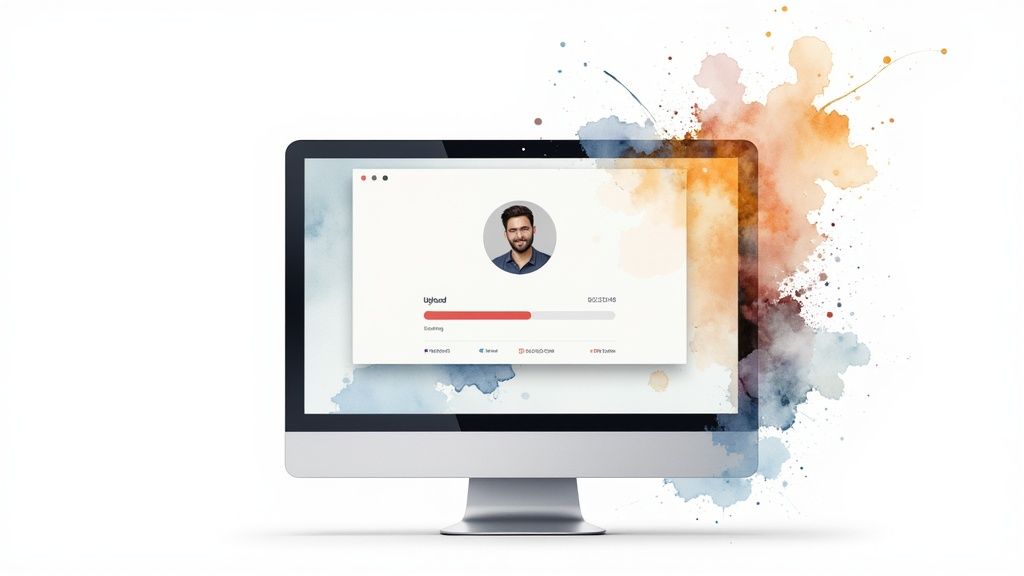
This simple layout really helps you focus on the text without a bunch of distracting buttons and menus getting in the way.
Even with great AI, you'll probably want to make a few tweaks—maybe fix the spelling of a unique name, adjust some punctuation, or clarify some niche terminology. The editor works just like a normal text document; just click where you want to edit and start typing.
Honestly, the real magic of a tool like Typist isn't just the AI-generated first draft. It's how dead simple it makes the final review. That mix of AI speed and human oversight is how you get professional-level results every single time.
Exporting Your Final Text File
Once your transcript looks perfect, the last step is getting it out of the platform. Typist gives you a couple of really practical formats, so your text is ready for its next life.
You can export your work as:
- TXT: A basic, plain text file. It's perfect for quickly copying and pasting into a blog post, show notes, or an email.
- SRT: This is the industry-standard format for video subtitles. It includes all the necessary timestamps, so you can upload it directly to YouTube or drop it into a video editor like Premiere Pro.
And that's it. In just a few clicks, you go from a video file to a polished, usable text document. The whole workflow is built to save you time.
Start transcribing with Typist →
Turn Your Transcript into Amazing Content
So, you’ve run your video through a converter and now you have a clean transcript. Great! But don't just file it away. That text is pure potential—the raw material for a ton of new content.
Think of your transcript not as the finish line, but as the starting block. A single hour-long webinar or a deep-dive interview is packed with powerful ideas, standout quotes, and key takeaways. By breaking that transcript down, you can pull out those golden nuggets and give them a life of their own. Suddenly, one video can fuel your content calendar for weeks.
From Text to SEO Gold
One of the best things you can do with a transcript is turn it into a blog post optimized for search engines. The way people talk in videos—naturally and conversationally—is often exactly how your audience types their questions into Google.
A tool like Typist hands you the clean text, making it easy to start shaping it into a proper article. You can add H2s and H3s, sprinkle in some bullet points, and drop in images to build a comprehensive resource that search engines will eat up.
This strategy gives you a much bigger return on the effort you put into that initial video. You’re no longer just chasing views; you’re building a lasting asset that brings in organic traffic over time.
Create Snackable Social Media Content
On social media, people scroll fast. They want quick, valuable bites of information. A long transcript is the perfect place to find them.
- Powerful Quotes: Scan through the text for those memorable one-liners or expert insights. Pop them onto a branded graphic for Instagram or LinkedIn. It’s simple and effective.
- Key Statistics: Did your guest drop a surprising number? Pull it out and make it the hero of a tweet or a simple infographic. Data always gets attention.
- Actionable Tips: If your video was a how-to, you can easily extract a short, step-by-step process and turn it into an Instagram carousel post.
The beauty of a transcript is that you can pinpoint the most powerful moments of your video without having to scrub through the whole recording again. You can genuinely create a month's worth of social posts from a single piece of video content this way.
A quick heads-up: after getting your transcript, especially from an AI tool, the text can sometimes feel a bit stiff. To give it that final bit of polish and make sure it sounds completely natural, you might want to run it through one of these free AI text humanizer tools before you post.
It’s all about making that original video work smarter, not harder.
Getting More Accurate Transcripts
Upload a file. Get text back. That simple. Try it free
Even the best AI transcription tool is only as good as the audio it's fed. I like to think of it like a conversation—if you're trying to talk to someone in a crowded, noisy room while they're mumbling, you’ll struggle to catch every word. It's the exact same for the AI.
The real secret to a stellar transcript often starts before you even press record. The old saying "garbage in, garbage out" couldn't be more true here. If your video’s audio is clear, crisp, and clean, you're giving the AI a fighting chance to deliver an accurate result.
How to Get Better Audio (And Better Transcripts)
You don't need a fancy recording studio to get clean audio. A few small, practical tweaks can make a massive difference in your final transcript.
Here’s what I’ve found works best:
- Kill the background noise. Find a quiet spot. Shut the window to block traffic noise, turn off the humming air conditioner, and maybe even put down a rug to soak up any echo. Little things add up.
- Get a better microphone. Your laptop's built-in mic will do in a pinch, but it picks up everything. A simple external mic, like a lavalier you can clip to your shirt, will focus on your voice and dramatically improve clarity.
- Speak clearly and don't rush. Take a breath and enunciate. Try to maintain a steady pace. One of the fastest ways to trip up any transcription AI is having multiple people talk over each other.
Taking these steps upfront is your best defense against a messy transcript. It’ll save you a ton of editing time on the back end.
Don't Skip the Final Edit
No matter how perfect your audio is, always plan on giving your transcript a final once-over. AI is a powerful assistant, but it’s not infallible. It can get tripped up on industry jargon, unique names, or thick accents.
This is where having a tool with a solid built-in editor, like Typist, really pays off. Its interactive editor syncs your audio playback with the text, highlighting words as they're spoken. This makes it incredibly simple to find and fix any little errors.
A great transcript isn't just what the AI spits out. It's the final, polished version you create. That five-minute review is what elevates a rough draft into a professional, usable document.
The explosion of video content is undeniable. You can read more about how video content is driving the AI market on credenceresearch.com. This trend means that being able to quickly and accurately pull text from video is a more valuable skill than ever.
If you ever get stuck or have questions about improving your results, you can always get in touch with the Typist support team for some expert advice. A little preparation and a quick final edit are all it takes to get professional-grade transcripts every single time.
Common Questions About Free Transcription
When you first start looking for a video to text converter free of charge, a few questions tend to come up again and again. Getting a handle on these will help you pick the right tool and avoid any frustrating surprises down the line. Let's dig into what most people want to know.
How Accurate Are Free Converters?
You might be surprised by just how good free transcription tools have become. With modern AI like the engine behind Typist, you can often see accuracy hitting 90% or even higher, but there’s a catch: the audio has to be clear.
Think about it this way—if you can barely understand what someone is saying, an AI will struggle too. Things like loud background noise, overlapping conversations, or very thick accents can definitely trip it up. That's totally normal, and it’s why any decent tool will give you an editor to clean things up. A quick proofread is all it usually takes to get the transcript perfect.
Understanding the Limits of Free Tools
"Free" is great, but it usually comes with a few ground rules. Most services that offer a free plan will place some kind of cap on usage, like a daily limit on how many files you can convert or a maximum file length. This is just how they keep the lights on and ensure the service is available for everyone.
Typist, for example, gives you 60 free minutes on its free plan, which is plenty for most students, content creators, or researchers. If you start hitting that limit regularly, it’s a good sign that it might be time to look at a paid plan for more firepower.
The big takeaway here is that "free" doesn't mean "bad." It just means there are usage limits. For most everyday tasks, a solid free plan is more than enough to get the job done.
Record once, transcribe instantly. Search, export, and reference later Try it free
Is It Safe to Upload My Videos?
Security is a huge deal, and it's smart to be cautious about where your files end up. A reputable transcription service will take your privacy seriously. Look for providers who use secure, encrypted connections for uploads and are upfront about how they handle your data.
Before you upload anything sensitive, it’s always a good idea to check out the company's privacy policy. You can see exactly how Typist handles security by reading their privacy policy. Choosing a service that's transparent about its security practices is the best way to get peace of mind.