Your Guide to Using a Video to Text Converter
Unlock your video's potential with a video to text converter. Learn to transcribe, edit, and repurpose content for SEO, accessibility, and growth.
A video to text converter is a smart tool that listens to your video and writes down every word spoken. It uses Artificial Intelligence (AI) to analyze the audio, figure out what's being said, and spit out a text file you can actually use. This simple process makes your video content suddenly searchable, accessible, and ready to be repurposed into something new.
Why a Video to Text Converter Is a Content Game Changer
Let's face it: search engines can't watch your videos. All the great information inside is basically invisible to them. This is where a video to text converter flips the script. Smart creators and marketers have stopped treating transcription as an afterthought and started making it a central part of their strategy.
This isn't just a niche trick; it's a response to the explosion of video online. The demand for AI tools that can turn spoken words into text has grown massively, thanks to everything from social media reels to remote work meetings and online courses. People need an efficient way to make their video content work harder for them.
Unlock Your Content's Full Potential
So, what do you actually gain by turning your videos into text? It’s all about working smarter and getting more mileage out of the content you’ve already created.
Here are a few of the immediate wins:
- Boost Your SEO Instantly: Search engines love text. By providing a transcript, you give them a word-for-word script of your video to crawl and index. This can massively improve your chances of showing up in search results.
- Improve Accessibility for Everyone: Transcripts and captions open up your content to people who are deaf or hard of hearing. They also serve viewers who are in a noisy environment or simply prefer to read along while they watch.
- Create Repurposing Opportunities: This is where the magic really happens. That one-hour webinar you recorded? Its transcript can be the foundation for a detailed blog post, a series of social media updates, or even an email newsletter.
The benefits are clear and can have a significant impact on how far your content reaches.
Here’s a quick look at the advantages you can expect.
Key Benefits of Transcribing Your Videos
| Benefit | Impact on Your Content Strategy |
|---|---|
| Enhanced SEO | Makes every spoken word in your video indexable by search engines like Google. |
| Greater Accessibility | Ensures your content is usable by a wider audience, including those with hearing impairments. |
| Content Repurposing | Provides a text-based source to easily create blog posts, social media content, and articles. |
| Better User Experience | Allows viewers to read along, search for specific keywords, and consume content without audio. |
By turning your video's audio into a text document, you're not just creating a script; you're building a versatile asset that can be used again and again.
For faith-based organizations, a dedicated sermon transcription service can be a huge help, making messages more shareable and accessible to the entire community.
The real power of a transcript is seeing it not as an endpoint, but as a starting point. It’s the raw material for countless new content pieces, saving you time while multiplying your reach.
The good news is that tools like Typist have made this incredibly easy. What used to be a long, manual task can now be done in just a few minutes.
Generate subtitles for any video
Upload MP4 or MOV, export SRT subtitles. Works with Premiere, Final Cut, DaVinci
Getting Your Video Ready for a Perfect Transcription
The old saying 'garbage in, garbage out' couldn't be more true when it comes to AI transcription. The final quality of your text is almost entirely dependent on the quality of your video's audio. While a solid video to text converter like Typist is designed to handle a lot, a few minutes of prep work upfront can make a massive difference in accuracy.
Think of it as clearing a path for the AI. The clearer the audio, the fewer obstacles it has to navigate, and the less time you'll spend cleaning up the results later.
It All Starts with Clean Audio
Honestly, this is the most critical part. Even the smartest AI will stumble over muffled voices, loud background noise, or speakers who are too far from the mic. You don’t need a fancy recording studio, but paying a little attention to the sound will pay off big time.
Here are a few simple things that have a huge impact:
- Kill the Background Noise: This is an easy one. Turn off fans, shut the windows, and try to get away from humming refrigerators or air conditioners. That low-level buzz can easily get in the way of clear voice detection.
- Get Closer to the Mic: This seems obvious, but it’s often overlooked. Someone speaking from across the room is always going to be harder to transcribe accurately than someone speaking directly into a microphone.
- Separate Your Speakers: If you can, record each person on a separate audio track, especially for interviews or podcasts. This is the single best way to avoid issues with crosstalk (when people talk over each other), which is a nightmare for any transcription service.
Start transcribing with Typist →
A Quick Word on File Formats
The technical side of things matters, too. Sticking with common, high-quality formats helps ensure the software can read your file without a hitch. For Typist and most other tools, you can't go wrong with standards like MP4, MOV, MP3, and WAV.
A clean audio source is the foundation of an accurate transcript. Spending just five minutes on preparation can save you thirty minutes of manual corrections. It’s the highest-return activity you can do before hitting 'transcribe'.
Finally, think about the words being spoken. If your video is full of technical jargon or niche terminology, encourage speakers to enunciate clearly. A top-tier AI can handle complex vocabulary surprisingly well, but it still needs to hear the words properly first. For a deeper dive into how this all works, you can learn about building the fastest AI audio transcription. These small efforts are what turn a decent transcript into a perfect one.
Your Walkthrough of Transcribing with Typist
Alright, let's get into the nuts and bolts of turning your video into text with Typist. Forget the idea of clunky software and steep learning curves. The whole point here is speed and simplicity—getting you from a video file to a clean, usable text document without the headache.
Once you’re in, the dashboard is refreshingly clean. It’s built to get your content processed fast. You just find your video file, upload it, and the AI takes over from there.
From Upload to Transcript
The process is pretty intuitive. First, you'll tell the tool what language is being spoken in the video. Then, you get a few options. I almost always enable speaker identification, especially for interviews or team meetings. It’s a lifesaver, automatically figuring out who said what and labeling the speakers for you. This alone can cut your editing time in half.
With good, clear audio, modern AI can hit over 90% accuracy right out of the gate. Some of the top-tier models are even pushing past 95% when you have a single speaker without a lot of background noise. That’s why these tools have gone from a novelty to a must-have for so many professionals.
This quick graphic really nails down the three keys to getting a great result every time.
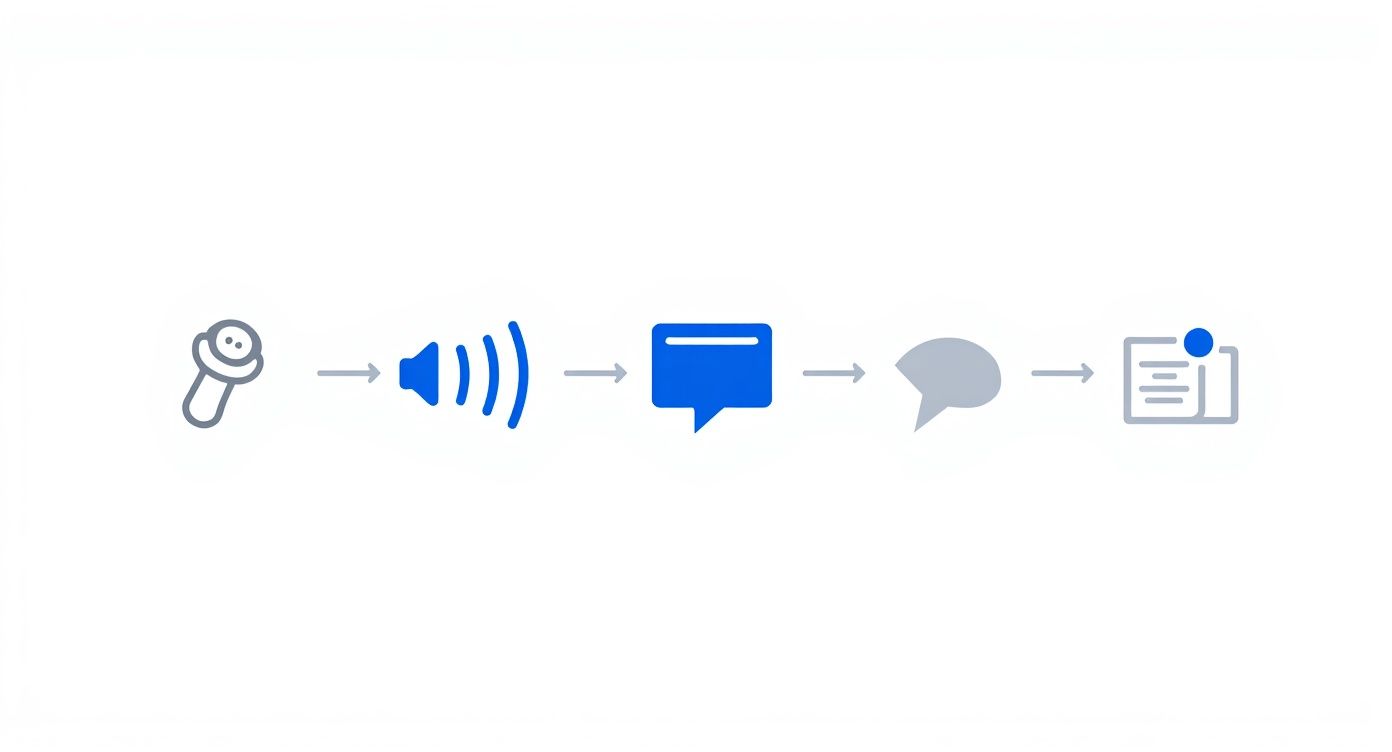
As you can see, the secret to a flawless transcript starts before you even hit the upload button. It all comes down to the quality of your audio.
Seeing the AI in Action
In just a few moments, Typist will hand you back the complete text, all organized and ready for you to polish up. It’s a surprisingly simple experience, proving you don't need to be a tech wizard to use a powerful video to text converter.
The goal is to move you from raw video to usable text as efficiently as possible. A great tool doesn't just transcribe; it simplifies your entire content workflow.
That’s really all there is to it. By following these straightforward steps, you’ll be ready to convert your first video and start putting that content to work.
How to Edit and Export Your Transcript Like a Pro
Transcription that works in 99+ languages Start transcribing
Think of your AI-generated transcript as a fantastic first draft. It gets you 99% of the way there in a fraction of the time, but a few quick edits are what take it from good to great. This is where you add the human touch that makes the text truly polished and ready for anything.
Typist’s editor is built to make this process as smooth as possible. Once your file is transcribed, you can dive right in. The AI is pretty smart about separating speakers, but you'll probably want to rename the generic "Speaker 1" and "Speaker 2" to the actual participants' names.
Fine-Tuning Your Text
Even the best AI can mishear a word here or there, especially with unique accents, background noise, or industry-specific jargon. The editor makes cleaning this up a breeze. You can play the audio or video right alongside the text, and the synchronized highlighting shows you exactly where you are.
This feature is a lifesaver for a few common tasks:
- Fixing Misheard Words: Catch any words the AI might have fumbled. It’s as simple as finding the word and typing in the correction.
- Refining Punctuation: You can easily add commas, periods, or question marks to better reflect the speaker’s natural pauses and tone, which makes the whole thing much easier to read.
- Checking Timestamps: The timestamps are clickable, letting you jump to that exact moment in the video. This makes it incredibly easy to confirm a specific phrase or check context without scrubbing back and forth.
If you ever run into a tricky situation or have questions about a more complex project, don't hesitate to get in touch. The folks behind the tool are always happy to help, and you can reach out to the Typist team for support.
A polished transcript isn’t just about catching errors. It’s about shaping the text for its final purpose—whether that’s creating clear video captions, a readable blog post, or searchable meeting notes.
Upload your recording, get a transcript, export to any format. Repurpose content in minutes Start transcribing
Choosing the Right Export Format
Once you’ve given your transcript that final polish, it's time to export. The format you pick really depends on what you plan to do with the text next.
This is where a flexible video to text converter shows its value. If you're writing a blog post or an article, a simple .txt file is all you need. You can just copy and paste the content right into your editor.
But if you’re creating captions for a video on YouTube, Vimeo, or social media, you’ll want the .srt file. This is the industry standard for subtitles because it includes all the precise timestamps needed to sync the text perfectly with the action on screen.
Creative Ways to Repurpose Your Transcribed Content
Think of your polished transcript as more than just a record of what was said. It's actually the raw material for a dozen new pieces of content. Seeing your transcript as the end of the line is a huge missed opportunity. Instead, you should view it as the starting point for a much smarter, more efficient content strategy.
With a high-quality text version of your video, the creative possibilities are pretty much endless. That one-hour webinar you hosted can now become a detailed how-to guide, pulling out the most actionable steps and organizing them for your audience.
Turn Your Transcript into a Content Engine
Once you have your polished transcript, the real fun begins. You can easily turn that single video into blog posts, social media updates, email newsletters, and so much more. If you really want to dig in and master content repurposing strategies, checking out a dedicated guide on the topic is a great next step.
Here are a few practical ways to get started right away:
- Create Powerful Social Media Graphics: Scan your transcript for memorable quotes, surprising statistics, or powerful takeaways. Use a simple design tool to turn these text snippets into eye-catching graphics for Instagram, LinkedIn, or X. They're perfect for sharing and boosting engagement.
- Build an Email Mini-Course: Break down a tutorial or educational video into a series of digestible lessons. Each main point from your transcript can become a separate email, offering real value to your subscribers over several days.
- Develop Detailed Blog Posts: Your transcript is essentially a first draft of a comprehensive article. Just expand on the key points, add some relevant visuals, and optimize it for search engines.
This approach is becoming more and more common. For example, one study projects the global speech-to-text market to grow significantly, driven by the demand for content accessibility and data analysis. This shift is happening because of the growing need for accessibility and the sheer volume of video content being created every day.
Don't let your valuable video content live and die in a single format. A transcript is your key to multiplying its impact across multiple channels with minimal extra effort.
By using a video to text converter, you’re not just saving time. You’re building a library of assets that can fuel your marketing for weeks, or even months, to come.
Common Questions About Video to Text Converters
Even though video to text converters are pretty common these days, it's natural to have questions about how they work. Getting a handle on the specifics will help you get the most out of a powerful tool like Typist and slot it right into your existing workflow.
Let's clear up a few things people often ask.
How Accurate Is AI Transcription?
You'd be surprised. Modern AI transcription can be incredibly precise, often hitting over 95% accuracy when the audio is clear, especially with just one person talking. With a solid tool like Typist, the final result really comes down to a few key things: audio quality, background noise, and people talking over each other.
Honestly, the best thing you can do for a great result is to start with a clean audio source. It’s a simple step, but it gives the AI the best shot at creating a transcript that needs minimal, if any, editing on your end.
Can I Transcribe Videos with Multiple Speakers?
Absolutely. This is where advanced converters like Typist really shine. They're built to handle conversations with several people. The AI automatically figures out when a new person is talking and separates the dialogue, usually with generic labels like Speaker 1 and Speaker 2.
One of the biggest time-savers I've found is automatic speaker identification. It's a game-changer for turning interviews, team meetings, or panel discussions into organized, readable documents without having to do it all by hand.
Once the transcription is done, you can just hop into the editor and assign the right names to each speaker. It makes the final text much easier to read and understand.
What Is the Best Transcript Format for My Needs?
The right format really just depends on what you plan to do with the text. Typist gives you a few different export options so your transcript is ready for whatever project you have in mind.
Here’s a quick guide based on my experience:
- For Blog Posts or Articles: A plain text (.txt) file is your best friend. It’s clean, simple, and ready to be dropped straight into your content management system.
- For Video Captions or Subtitles: The SubRip (.srt) format is the gold standard here. This file type includes all the timestamps needed to sync your text perfectly with the video on platforms like YouTube or social media.
Of course, knowing your data is safe is crucial. We're committed to protecting your information, and you can see all the details in our privacy policy.
Start transcribing with Typist →
How Long Does Transcription Take?
This is where you'll see one of the biggest wins of using an AI tool. A human might take a few hours to transcribe a one-hour video. An AI-powered converter like Typist can do the same job in just a couple of minutes.
The exact time can vary a bit depending on the video's length and how big the file is, but it’s always worlds faster than doing it manually. This speed frees you up to spend your time actually creating and using your content, not just transcribing it.