Transcribe Audio to Text Free Your Simple Guide
Discover how to transcribe audio to text free with this practical guide. Learn to get fast, accurate transcripts for your projects without any cost.
Let's be honest, transcribing audio by hand is a soul-crushing task. I remember the days of painstakingly replaying audio snippets, trying to catch every word. It was slow, tedious, and if you wanted to outsource it, incredibly expensive. For anyone on a budget—creators, students, professionals—finding a way to transcribe audio to text free of charge felt like a dead end.
Thankfully, those days are pretty much over. Modern AI has completely flipped the script, offering an incredible combination of speed and accessibility that was once unimaginable.
Why Free AI Transcription Is Such a Game-Changer

The old way was a choice between two bad options: waste hours typing it all yourself or pay steep per-minute rates for a human transcriptionist. This created a huge barrier, locking away the value in interviews, lectures, and meetings for anyone who couldn't afford the time or money.
AI tools have knocked that barrier down. You’re no longer waiting days for a transcript to come back; you can have the whole thing ready in just a few minutes. This isn't just a minor convenience—it fundamentally changes how we can work with audio and video content.
A Massive Jump in Accuracy and Speed
What really makes today's tools work so well is how far they've come in performance. Just a few years ago, AI transcription was clunky, with accuracy hovering around 70-80%. Now, many of the best tools consistently hit 90% to 95% accuracy on clear audio. That’s a huge leap, making AI a truly practical option for most professional and creative tasks.
This is exactly where a tool like Typist comes in. It’s designed to deliver that top-tier speed and accuracy, letting you get straight to work with your content instead of getting bogged down in the prep.
The bottom line is this: by eliminating the cost and time hurdles, free AI transcription lets anyone tap into the potential of their audio files. Suddenly, you can turn a podcast into a dozen blog posts, generate subtitles for a video, or create searchable meeting notes without a second thought.
For those who live and breathe audio, like podcasters, a good overview of AI tools specifically for podcasters can be a goldmine. But the core advantage is universal: turning spoken words into a powerful, flexible text asset.
Your First Free Transcript with Typist
Generate subtitles for any video
Upload MP4 or MOV, export SRT subtitles. Works with Premiere, Final Cut, DaVinci
Getting started with a new tool can feel like a chore, but getting your first free audio-to-text transcript with Typist is refreshingly simple. There are no hoops to jump through—no credit card forms, no lengthy setup. The whole point is to get you from sign-up to a finished transcript in just a couple of minutes.
First things first, you’ll need to create a free account over on the main Typist website. The moment you sign in, you land on your personal dashboard. It's clean, minimalist, and gets straight to the point.
Right away, you'll see your daily credits clearly displayed: 60 free minutes. The big "Upload" button is front and center, so you know exactly where to go to get started.
This whole process is really just a few simple clicks.
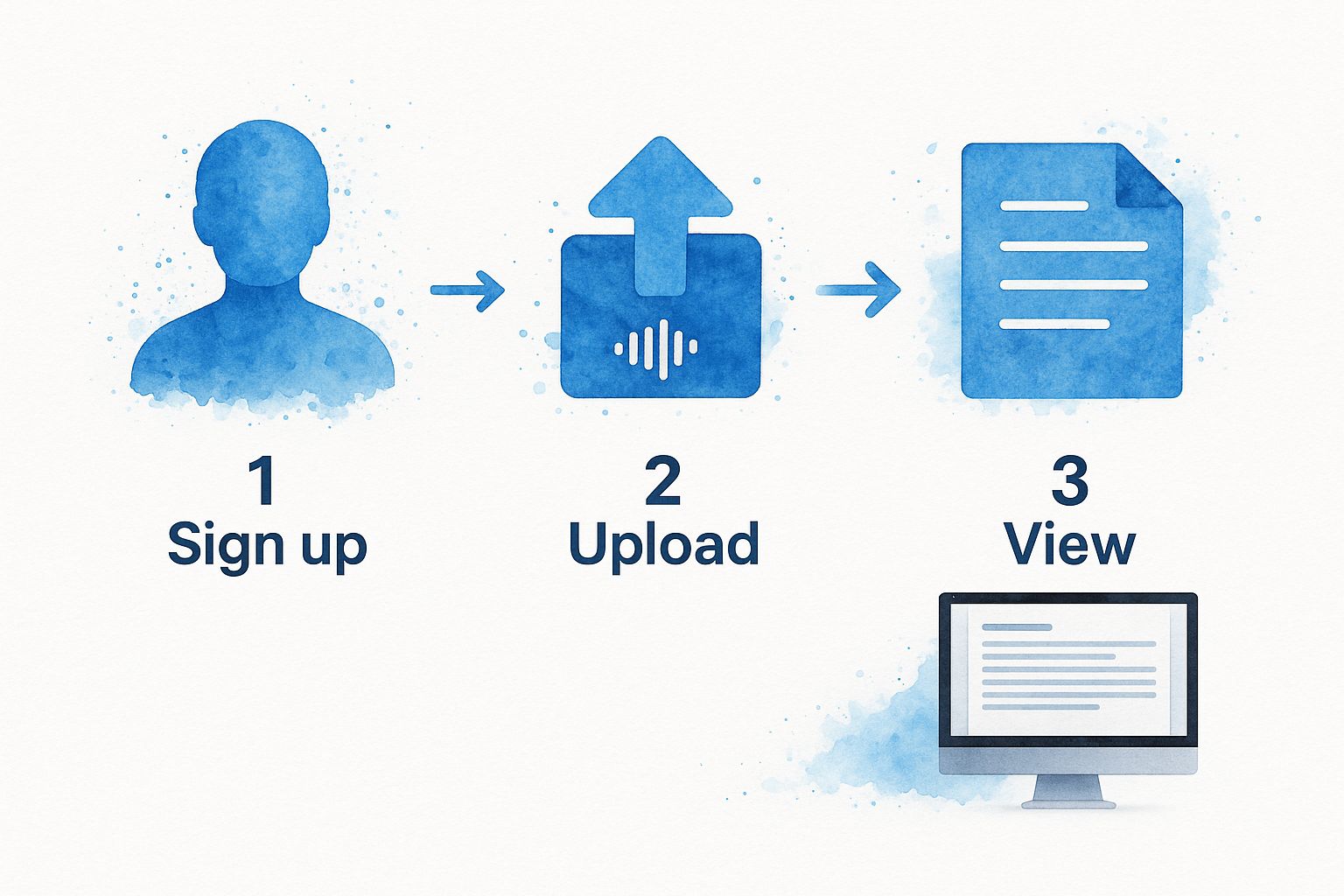
As you can see, there’s not much to it. The design removes all the usual friction you find with other tools, letting you focus on your actual recording.
Typist Free Plan Features at a Glance
To give you a clearer picture of what you get right out of the gate, here’s a quick breakdown of the free plan. It’s surprisingly generous.
| Feature | What You Get for Free |
|---|---|
| Daily Transcripts | 3 free transcripts every day (up to 20 minutes each) |
| File Types | Supports various audio and video formats (MP3, MP4, etc.) |
| Language Support | Transcribe in 57 different languages |
| Export Options | Download your transcript as plain text (.TXT) |
| Data Privacy | Your files are not stored long-term |
| Credit Card Required | Nope, none at all. |
This isn't just a limited-time trial; these features are part of the permanent free plan, which makes Typist a great tool to keep in your back pocket.
Finding Your Way Around the Dashboard
Your dashboard is your home base. Once you upload a file, you'll see it appear in a list with a status indicator showing its progress. When it’s ready—which is usually pretty fast—you just click on it to see the full transcript.
It's all very intuitive. You spend your time working with your content, not fighting with the interface.
The entire philosophy behind the Typist dashboard seems to be efficiency. You don't need to watch a tutorial to get it. Your free transcript allowance is obvious, the upload button is unmissable, and your completed files are exactly where you'd expect them to be.
Ready to give it a shot yourself? It’s completely free to try.
Upload a file. Get text back. That simple.
No complex setup, no learning curve. Drag, drop, transcribe
Getting Your Audio Files Transcribed
Alright, you’re signed in and ready to go. This is the fun part—seeing your audio or video file transformed into accurate text. Typist makes this incredibly simple, so you can get your free audio-to-text transcription without getting bogged down in technical details.
Once you're looking at your dashboard, you'll see a big "Upload" button. Just click that to get started.
One of the things I appreciate is that Typist handles the most common file types, which means you probably won't have to waste time converting anything.
It supports:
- Audio files: MP3, WAV, M4A
- Video files: MP4, MOV
This means you can drop in a recording from a Zoom meeting, a lecture you captured on your phone, or a podcast interview without any extra steps. If you’re working with video, this guide on how to transcribe a video to text has some great additional tips that apply here, too.
A Quick Tip for Better Results
While the AI behind Typist is impressive, the final accuracy of your transcript really depends on the quality of your original file. It’s the classic "garbage in, garbage out" scenario. A few minutes of prep can make a world of difference.
Before you hit upload, do a quick check:
- Is there a lot of background noise? Recording in a quiet room, away from traffic or humming air conditioners, is a game-changer.
- Are the speakers clear? Audio captured with the mic close to the source will always transcribe better than distant, muffled sound.
- Is the room echoey? Recording in a room with soft surfaces like a rug or curtains can absorb a surprising amount of echo.
Once your file is uploading, the AI kicks in right away. You can track its progress on your dashboard, but for most files, it only takes a few minutes. Best of all, you can close the window and do something else—you’ll get a notification as soon as it’s done.
The team behind Typist also shares a lot of useful advice on their official Typist blog. It’s worth a look for more advanced tips on getting the cleanest possible audio and making your workflow even smoother.
Start transcribing with Typist →
Getting Your Transcript Ready to Go
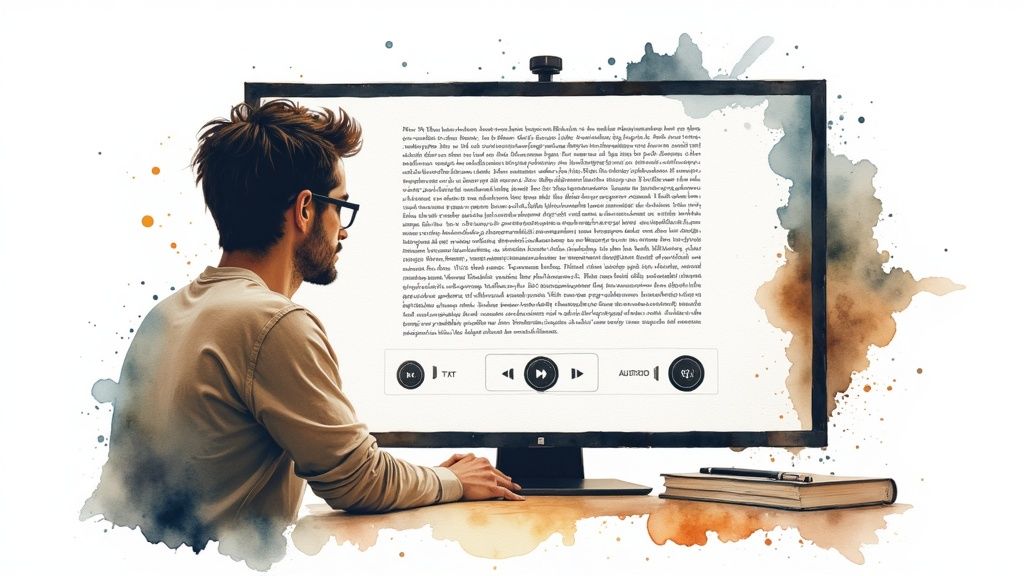
Once Typist has worked its magic, you'll have a raw transcript ready for a final polish. The AI is impressively accurate, but I always recommend a quick human review to make sure everything is spot-on for your project. This is where the interactive editor really shines.
Just click on your completed file from the dashboard, and you’ll find yourself in a really intuitive editing space. The audio player is synced right up with the text. As you hit play, you'll see the words highlight in real-time, which makes catching and fixing any small mistakes a breeze. You can just click and type.
One of the biggest time-savers, especially for interviews or team meetings, is that Typist automatically identifies and labels different speakers. This is a huge help when you need to transcribe audio to text free and not spend hours figuring out who said what. You can easily rename "Speaker 1" and "Speaker 2" to the actual names, like "Jane" or "Mark."
Polishing Your Transcript
The idea here isn't to start from scratch. It’s all about refining what the AI has already done. You might need to fix the spelling of a person's name, adjust some punctuation for better flow, or correct a niche industry term that the AI didn't quite catch. This is your chance to turn a great draft into a perfect final document.
I like to think of the AI transcript as a really solid first draft. My job is just to proofread and add that final human touch, which honestly only takes a few minutes for most recordings.
We take your data seriously. If you'd like to know more about how we handle your files, feel free to review our full commitment to user privacy.
Choosing the Right Export Format
Once you're happy with the edits, it's time to export. Typist gives you a couple of key formats, each designed for different situations:
- TXT (.txt): This is your basic plain text file. It's perfect for when you just need the words—you can easily copy and paste the content into a blog post, an article, or your own notes. It’s clean, simple, and works everywhere.
- SRT (.srt): If you're creating video content, this is the one you want. SRT files are the industry standard for video captions and subtitles. They contain the text along with the exact timestamps, so they work perfectly on YouTube or in any video editing software.
Picking the right format from the get-go makes your transcript immediately useful, whether you're creating content or just making your work more accessible.
Export your transcript to SRT, PDF, DOCX, or TXT — all from one upload Try it free
Pro Tips for Getting the Best Transcription Results
While Typist's AI is incredibly smart, the old saying "garbage in, garbage out" still holds true. The absolute biggest factor in getting a clean, accurate transcript is the quality of your original audio file.
Think of it this way: giving the AI a clean recording is like giving it a head start. A few simple tweaks before you even press record can make a massive difference in the final result.
Your main goal should be capturing crisp, clear audio without all the distracting sounds of the real world. Here’s how you can do that:
- Get close to your microphone. The closer you are, the stronger your voice signal will be compared to everything else. This simple move is a game-changer if you want to transcribe audio to text free and not have to spend ages editing afterward.
- Dampen the echo. Recording in a big, empty room? You'll get that hollow, echoey sound that can trip up even the best AI. Soft surfaces are your friend here—think carpets, curtains, or even a walk-in closet filled with clothes.
- Kill the background noise. Shut the window to block street noise, turn off that whirring fan, and silence your phone notifications. Every little sound competes with your voice for the AI's attention.
Start transcribing with Typist →
Handling Challenging Audio Scenarios
Let's be realistic—recordings are rarely made in a perfect studio. You're often dealing with multiple people talking over each other, heavy accents, or industry-specific jargon. The good news is, you can still get a great transcript.
If you have a meeting with multiple speakers, try to establish a ground rule: one person talks at a time. It also helps if people introduce themselves before they speak, especially in the beginning. This gives the AI clear cues for identifying who is who.
For audio loaded with technical terms or niche vocabulary, you'll probably need to do a quick proofread. A quick find-and-replace for specialized words is much easier when the rest of the text is already 99% accurate thanks to a clean recording.
Professionals are quickly moving to AI transcription because it's just so much faster. Automated tools can slash the time it takes a human to transcribe something by over 75%, turning a multi-day job into a task that takes just a few minutes. This efficiency is exactly why spending a little time preparing your audio pays off big time.
If you run into a particularly tough audio file and aren't sure how to handle it, don't hesitate to reach out. The Typist support team has seen it all and can give you personalized advice.
Got Questions About Free Transcription?
Even with a simple process, it's natural to have a few questions before you jump in. Let's clear up some of the most common things people ask so you can feel totally confident using a tool like Typist to transcribe your audio to text for free.
Is It Really Free to Transcribe with Typist?
Yep, it’s genuinely free. This isn't one of those tricky limited-time trials. Typist offers a permanent free plan where you get 60 free minutes, and you never have to pull out your credit card.
That daily allowance is perfect for tackling quick interviews, lectures, or video clips as they pop up. It makes it a reliable tool you can count on for your day-to-day projects.
How Accurate Are These Free AI Tools, Anyway?
You'd be surprised. Modern AI transcription is incredibly accurate, but the final result always comes down to the quality of your audio.
If you have a clear recording with minimal background noise and speakers who aren't talking over each other, a tool like Typist can hit 90-95% accuracy without breaking a sweat. Just remember the recording tips we covered earlier—a little prep work makes a huge difference in letting the AI do its best work.
How Long Until I Get My Transcript Back?
This is where AI really shines. Forget waiting hours or days like you would with a manual service. Most of the time, your file will be transcribed and ready to go in just a few minutes.
Most free tools now process files in about 10-15 minutes, which is right up there with the paid services. You can discover more insights about the speed of modern transcription tools and see how they stack up. This means you can go from a recording to a finished document almost instantly.
For instance, a 20-minute podcast interview can be transcribed and ready for you to edit into a blog post in less time than it takes to make a cup of coffee. That kind of speed completely changes your workflow.
Ready to see for yourself?
Transcribe a 1-hour recording in under 30 seconds Try it free
What Kind of Files Can I Upload?
You won't have to worry about converting files first. Typist is designed to handle the most common audio and video formats people use every day.
You can upload these directly:
- MP3
- WAV
- M4A
- MP4
This flexibility means you can transcribe anything from a quick voice memo on your phone to a full-length video interview without any extra steps.
Ready to turn your audio into text in minutes? With Typist, you get fast, accurate, and completely free transcriptions every single day. Start transcribing with Typist →