How to Transcribe Audio to Text Fast and Accurately
Learn how to transcribe audio to text with this practical guide. Discover proven methods to improve accuracy and speed using modern transcription tools.
When you need to turn spoken words into written text, you've got a few ways to tackle it. You could grind it out by hand, use a basic speech-to-text tool, or go with a dedicated AI service. Honestly, for the best mix of speed, accuracy, and cost, a specialized AI tool like Typist is usually the smartest move. It gets the job done in minutes, which is something manual typing just can't compete with.
Choosing Your Transcription Method
So, how do you decide which path to take? It really boils down to what you need. Are you after perfect, court-ready accuracy? Do you need it done now? Or is budget your main concern? Each option has its own pros and cons that will affect your schedule and your wallet.
The Three Main Paths
Let's break down the three main ways to get your audio into text.
- Doing It by Hand: This is the old-school way. Someone sits down with headphones and types out everything they hear. You can get incredibly high accuracy this way, but it's painfully slow. If you're paying someone to do it, the costs can add up fast.
- Generic AI Tools: You've probably seen these built into other software. They're quick and often free, but they struggle with the tricky stuff. Think multiple speakers talking over each other, thick accents, or background noise. They're just not built for complexity.
- Specialized AI Platforms: This is where tools like Typist come in. They are designed for one thing: high-quality transcription. They use powerful AI to handle the heavy lifting and come with essential features like telling speakers apart, adding timestamps, and providing an editor to quickly clean things up.
The infographic below lays out these differences pretty clearly.
As you can see, a dedicated platform really does give you the best of both worlds.
This isn't just a small shift, either. It’s a huge change in how people work with audio. The AI transcription market was valued at USD 4.5 billion in 2024 and is expected to hit nearly USD 19.2 billion by 2034. That explosive growth shows just how essential these tools are becoming.
Comparison of Transcription Methods
To make it even clearer, here’s a side-by-side look at how these methods stack up against each other.
| Method | Accuracy | Speed | Cost | Best Use Case |
|---|---|---|---|---|
| Manual Typing | Very High (99%+) | Very Slow (Hours/Days) | High | Legal depositions, medical records, anything requiring absolute precision. |
| Generic AI Tools | Low to Medium | Very Fast (Minutes) | Low / Free | Quick personal notes, simple, single-speaker recordings with clear audio. |
| Typist | High (Up to 98%) | Very Fast (Minutes) | Affordable | Interviews, podcasts, meetings, academic research, content creation. |
Ultimately, the right choice depends on what you're working on.
For sensitive legal or medical files where every single word has to be perfect, manual transcription might still be the way to go. If you just need to jot down some quick thoughts from a voice memo, a generic tool could be fine.
But for almost everything else—podcasts, interviews, team meetings, and research—a dedicated AI platform like Typist just makes the most sense. It closes the gap between the snail's pace of manual work and the accuracy issues of basic software. For more tips on getting the most out of your transcription, you can always check out our blog.
Prepping Your Audio for Flawless Transcripts
Need subtitles? Show notes? Meeting minutes? Try it free
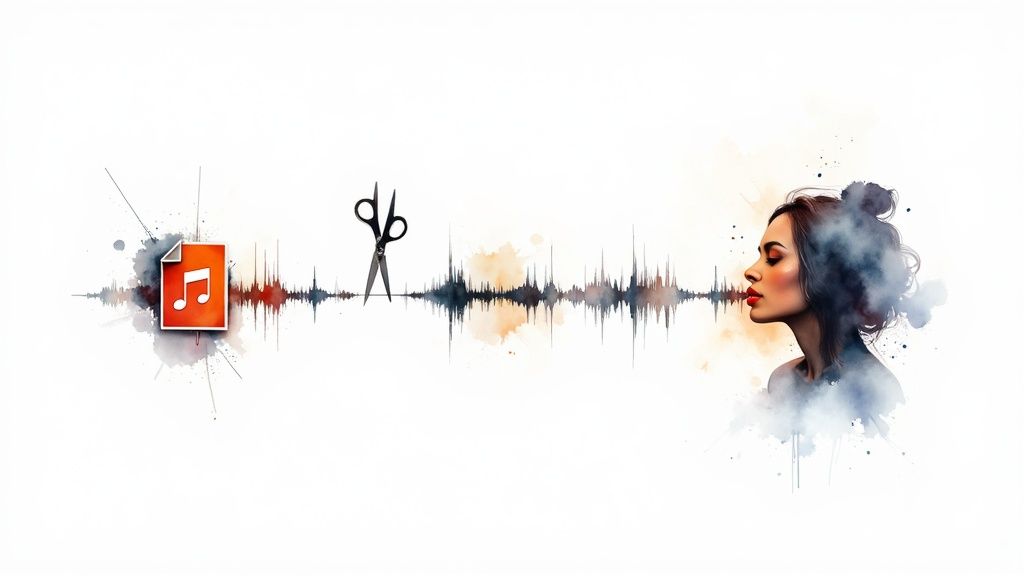
The accuracy of your transcript is decided long before you ever click "upload." I've learned this the hard way over the years. You've probably heard the old saying, "garbage in, garbage out"—and it couldn't be more true for AI transcription.
If you feed a tool a messy, unclear audio file, you’re going to get a messy, inaccurate transcript back. It's a simple truth. But the good news is that just a few minutes of prep work can make a world of difference in your final result.
This is the secret to learning how to transcribe audio to text without spending hours on corrections. The goal is to give an AI like Typist the cleanest possible signal to work with. When you do that, it can really shine.
Choose the Right File Format
While Typist is pretty flexible with formats, some are definitely better than others for preserving audio quality. I always recommend sticking with one of these two:
- MP3: This is the universal standard for a reason. It's compressed, which keeps file sizes manageable, and for most transcription jobs, the quality is more than enough.
- WAV: If you need the absolute best quality, go with WAV. It's an uncompressed format, so it keeps every bit of the original audio data. The files are much larger, but for projects where clarity is paramount, it’s worth it.
My number one rule is this: the less background noise, the better. Try to record in a quiet room, use a decent microphone if you can, and make sure speakers aren't talking over each other. These fundamentals will get you 90% of the way to a great transcript.
The need for high-quality transcripts is exploding. The U.S. transcription market alone was valued at roughly USD 30.42 billion in 2024. That staggering number shows just how critical accurate text has become. If you're curious, you can get more details from the full market research by Grand View Research.
Simple Edits for Big Gains
You don't have to be a professional audio engineer to clean up your files. With a free tool like Audacity, you can make two quick edits that have a huge impact.
- Trim the Silence: Snip out those long, empty pauses at the beginning and end of the recording.
- Normalize the Volume: This is a lifesaver. It automatically adjusts the audio so the volume is consistent, meaning no parts are too quiet or too loud for the AI to understand.
These little tweaks give the AI a balanced, clean file to work with. Once your audio is prepped, you're ready for the magic.
Transcription that works in 99+ languages
Accurate results regardless of accent or language — just upload and go
Uploading and Transcribing with Typist
Okay, you've prepped your audio files, and now it's time for the magic to happen. This is where a tool like Typist really shines, taking what used to be a mountain of work and turning it into a few simple clicks. We're not just aiming for a block of text; we're aiming for a highly accurate, structured transcript without the headache.
The whole point of a modern transcription tool is to feel effortless. When you first land on the dashboard, you’ll see it’s clean, simple, and gets right down to business.
That big "Upload File" button is front and center for a reason. There’s no hunting around for where to start.
Getting Your Files into the System
You can drag and drop your files one by one, or if you're working on a big project—like a whole season of a podcast or a batch of focus group recordings—you can upload them all at once. It's a massive time-saver.
Before you hit "go," Typist asks for a little bit of context to make sure the AI gets it right. This is a crucial step that a lot of people overlook.
- Language Selection: Is your audio in English, Spanish, or something else? You can choose from over 99 languages. Telling the AI which language to listen for is probably the single biggest thing you can do to improve accuracy.
- Speaker Detection: If you have more than one person speaking, you'll want to flip this switch. Typist will automatically identify and label each speaker, which is a lifesaver for interviews, meetings, or any conversation where you need to know who said what.
Getting these settings right from the start gives the AI the best possible chance to deliver a great transcript. It's about guiding the technology before it even starts.
Try Typist free - Get 60 free minutes
What Happens During Transcription
Once you've uploaded your file and picked your settings, the rest is automatic. The AI kicks in, sifting through the audio, picking out words, and piecing it all together. It's smart enough to handle different accents, speaking styles, and even industry-specific jargon.
The real game-changer here is the automation. Think about it: instead of spending an hour (or more) manually typing out an hour of audio, the AI can do it in just a few minutes. That time is now yours to spend on more important things than just typing.
But speed doesn't mean you sacrifice quality. With clear audio, you can expect up to 99% accuracy. By letting the AI handle the heavy lifting, transcription becomes just another simple step in your workflow instead of a major project. For those interested in the nitty-gritty, you can learn more about Typist's AI transcription platform.
Honestly, the process is so fast that you can upload a file, go grab a coffee, and find the transcript waiting for you when you get back.
Polishing Your Transcript: The Human Touch
No complex setup, no learning curve. Drag, drop, transcribe Try it free
As good as AI has become, it still needs a human eye to get things perfect. Typist gives you a fantastic head start with a highly accurate first draft, but the review stage is where the magic really happens. This is your chance to make sure every word, pause, and nuance from the original audio is captured just right.
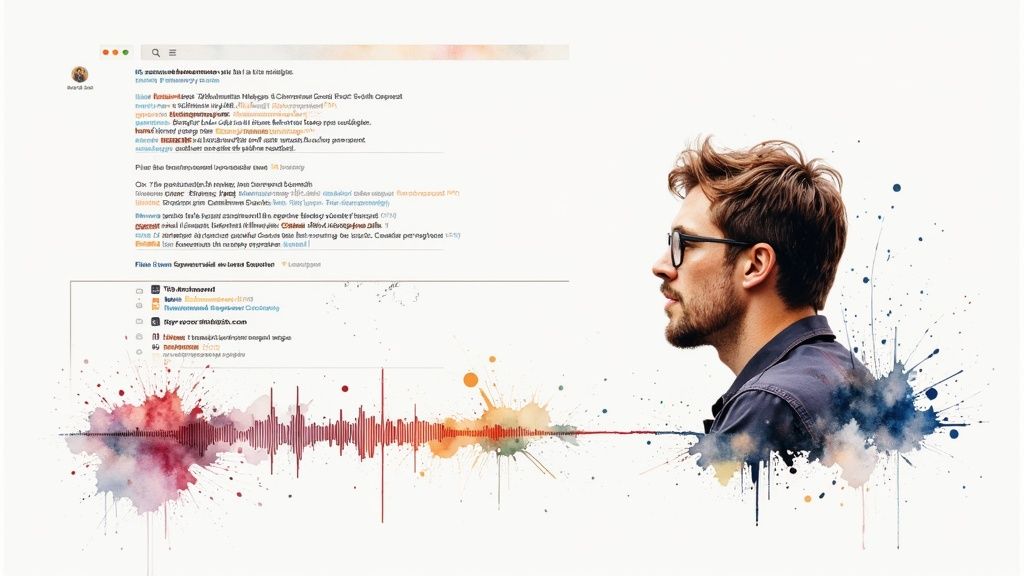
Typist’s interactive editor is built for exactly this. It's not just a wall of text; it’s a living document synced directly to your audio. When you hit play, you'll see each word light up as it's spoken. This makes it incredibly simple to follow along and spot any little errors or places where the AI might have missed the mark.
Getting Around the Interactive Editor
The editor's best feature is its speed. Forget endless rewinding and forwarding. If you see a word that looks out of place, just click on it. The audio instantly jumps to that exact spot in the recording. It's a simple trick that saves a ton of time and frustration.
A few other pro tips will make your review even smoother:
- Fly with Keyboard Shortcuts: Get comfortable with the basic commands for play, pause, and rewind. Keeping your hands on the keyboard makes the whole process feel much faster.
- Fix Punctuation and Flow: The AI does a decent job with punctuation, but you know the speaker's intent best. Add commas for pauses, break up long sentences, and create new paragraphs to make the final text easy to read.
- Correct Speaker Labels: Did Typist call someone "Speaker 2" when you know it was Dr. Chen? A quick click and rename is all it takes, and the change will apply everywhere.
Your goal here isn't to re-do the AI's work. Think of it as making small, precise adjustments. A few minutes of polishing in the editor can take a transcript from "good enough" to truly professional.
Dealing with Jargon and Niche Terms
Let's say you're transcribing a technical podcast about software development. The speakers are throwing around terms like "API endpoints," "containerization," and "Kubernetes." An AI might stumble over these, turning "Kubernetes" into "Cooper Nettie's."
This is where building a custom vocabulary is a lifesaver. You can essentially teach Typist your project's unique terminology. Add all those specific terms, acronyms, and names to your dictionary once, and the AI will recognize them correctly every single time you upload a file. This is a huge win for anyone working in a specialized field.
This final review is the crucial step that ensures your text isn't just transcribed—it's ready for anything you need it for.
Getting Your Transcript Ready for Anything
Never miss a word from lectures or interviews
Record once, transcribe instantly. Search, export, and reference later
A transcript isn't much good until you can actually do something with it. After you’ve given the text a final polish, the last step is to get it into a format that works for your project. This is where your raw text becomes a real asset, whether you're creating video content, writing an article, or digging into research.
Typist makes this part easy. You’re not stuck with just one output. Instead, you get a handful of flexible options designed to slide right into whatever workflow you’re using. That flexibility is what turns a simple transcription into a powerhouse tool.
Choosing the Right Export Format
The format you pick really just comes down to your end goal. Typist gives you the most common options, so you can grab what you need and get back to work without messing with file converters.
Here’s a quick rundown of your choices and when I’d use each one:
- Microsoft Word (.docx): This is my go-to for anything that will end up as a document. If I'm turning an interview into a blog post or pulling together meeting notes, exporting to DOCX gives me a file I can immediately start formatting and styling.
- Plain Text (.txt): When you need maximum compatibility, you can't beat a simple text file. It’s clean, has no formatting to get in the way, and you can drop it into pretty much any app or content management system out there.
- SubRip Subtitle (.srt): This is the gold standard for video captions. An SRT file isn't just the words; it includes the exact timestamps needed to sync the text perfectly with your video. It’s essential for making content accessible and easier to follow.
And if you’ve used speaker labels, Typist will include those in your export. This is a lifesaver for qualitative research or reviewing a meeting, where knowing who said what is absolutely critical.
Upload MP3, WAV, MP4 or any media file — get accurate text back instantly Upload a file
Putting Your Transcript to Work
So, what does this look like in the real world?
Imagine you just transcribed a one-hour podcast. Export it as an SRT file, and you can drop it straight into a video editor like Premiere Pro to create instant, accurate captions for a YouTube video.
Or, you could take that same podcast transcript and export it as a DOCX file. Now your content team has a perfect draft for a detailed blog post, already broken down with quotes and key discussion points. Being able to spin one piece of audio into multiple assets like this is a massive time-saver.
It's no surprise that the global audio transcription market was valued at a whopping USD 2.6 billion in 2023 and is only expected to grow. The demand is clearly there.
The bottom line: The export function is what connects your transcription to real-world action. Choosing the right format turns a simple text file into a valuable, searchable, and multipurpose asset that fuels your projects.
And you can be confident that your data is safe every step of the way. We take your confidentiality seriously. You can read all about our approach in our privacy policy.
Try Typist free - Get 60 free minutes
Pro Tips for Getting Higher Accuracy
Even the most powerful AI needs a clean starting point. Learning how to get the most accurate transcript often boils down to a few small habits that make a massive difference. Think of these as your pre-flight checklist before you even hit the upload button in Typist.
A little bit of effort upfront will save you a ton of editing time later. It’s all about giving the AI the best possible material to work with, which means you get a much cleaner, more reliable transcript right from the start.
Optimize Your Recording Environment
The single biggest factor in transcription accuracy is, without a doubt, audio quality. You can see a huge jump in your results just by focusing on two key areas.
- Find a Quiet Space: Background noise is the enemy of a clean transcript. Recording in a room with minimal echo, background chatter, or humming from appliances will immediately boost your accuracy.
- Use a Decent Microphone: Your computer's built-in mic works in a pinch, but an external USB microphone captures far clearer, richer sound. That clarity helps the AI distinguish words much more easily, especially with complex vocabulary.
Making these simple changes prevents the AI from having to guess what was said, which is exactly what leads to a more precise transcript.
60 free minutes. No credit card. Get started
Master Speaker Etiquette
When you're recording a conversation with multiple people, a little discipline goes a long, long way. The goal is to create distinct audio for each speaker so the AI can easily separate their voices and their dialogue.
Encourage everyone to speak clearly and at a moderate pace. More importantly, do your best to stop people from talking over one another. Overlapping speech is one of the toughest challenges for any transcription service, so establishing a simple "one person at a time" rule is incredibly effective.
Pro Tip: If you're recording a virtual meeting on a platform like Zoom, ask participants to mute themselves when they aren't speaking. This one small action cuts down on so much ambient noise and ensures only the active speaker's audio is captured clearly.
Build a Custom Dictionary in Typist
For anyone working in specialized fields like medicine, law, or engineering, a custom dictionary is an absolute game-changer. Typist lets you create a personalized vocabulary of niche terminology, company names, or unique acronyms.
By teaching the AI these specific terms beforehand, you can be confident they'll be transcribed correctly every single time. This feature is invaluable for maintaining accuracy with industry-specific jargon that a general AI model might easily get wrong. If you're curious about the tech that makes this possible, you can read more about how we built our fast AI audio transcription platform. It’s a small time investment that pays off with every transcript you create.
A Few Common Questions
If you're new to transcribing audio, you probably have a few questions. Let's walk through some of the most common ones we get from users.
What Kind of Audio Files Can I Use with Typist?
We wanted to make this as easy as possible, so we built Typist to handle just about any common audio or video file you throw at it. You can directly upload popular formats like MP3, WAV, M4A, MP4, and MOV.
This means you don't have to waste time with clunky file converters. Just grab your recording and get started.
How Does AI Transcription Stack Up Against a Human?
This is a great question, and the answer might surprise you. Today's AI transcription is remarkably accurate. For a recording with clear audio, Typist can hit accuracy levels of up to 99%—right on par with what you'd expect from a seasoned human transcriptionist.
The real difference comes down to speed and cost. An AI can turn around a high-quality draft in minutes for a tiny fraction of the price. While a person might have an edge with really tough audio—think thick accents and a noisy coffee shop—the AI gets you a nearly perfect transcript instantly. From there, our interactive editor makes it a breeze to polish off those last few details.
Start transcribing with Typist →
Can Typist Handle Recordings with More Than One Person?
Of course. This is one of its most powerful features, especially for anyone transcribing interviews, team meetings, or podcasts.
Typist has a built-in speaker recognition system that automatically figures out who is talking and when. It then neatly labels each person's dialogue in the transcript, so you can easily follow the conversation. You can even go in and rename the generic "Speaker 1" and "Speaker 2" labels to the actual names of your participants.
Is My Data Safe When I Upload It?
Your privacy and data security are non-negotiable. We've made sure that any file you upload to Typist is encrypted both in transit and at rest.
We adhere to strict privacy standards to keep your information locked down, whether it's a confidential business meeting or a sensitive personal recording. If you have any specific security concerns we haven't covered here, please don't hesitate to contact our team.