How to Transcribe Audio Files in Minutes
Learn how to transcribe audio files quickly and accurately. This guide covers the best tools and methods for turning your audio into text.
Getting your spoken words into written text is a powerful move. It’s not just about creating a record; it's about supercharging your SEO, making your content accessible to everyone, and building a searchable library of your work. You could do it the old-fashioned way, hire someone to type it all out, or use a smart AI tool like Typist to get an accurate transcript back in just a few minutes.
This guide will show you exactly how to get it done.
Why Accurate Audio Transcription Is a Game Changer

It wasn't that long ago that turning audio into text was a real headache. You were looking at either hours of tedious manual typing or a hefty bill from a professional transcription service. Thankfully, things have changed dramatically.
Today, AI-powered platforms have put high-quality transcription in everyone's hands. Whether you're a podcaster looking to turn an interview into a blog post or a researcher sifting through hours of interviews, the benefits are huge. Fast, accurate transcription lets you finally tap into all the valuable information locked away in your audio and video files.
Key Benefits of Transcribing Your Audio
For creators, researchers, and marketing teams, the payoff is pretty clear:
- Better SEO and Discoverability: Search engines can’t listen to your audio, but they love to read text. A transcript makes your podcast or video content completely visible to Google, which can drive a lot more organic traffic your way.
- Improved Accessibility: Providing a transcript opens up your content to people who are deaf or hard of hearing, helping you connect with a much wider audience.
- Easier Content Repurposing: Think about it. One audio recording can become a dozen different pieces of content—blog articles, social media updates, email newsletters, you name it—with very little extra work.
The technology behind this has come a long way. If you're curious about the bigger picture, this article on the future of voice technology, including Speech-to-Text is a great read.
And if you're working with sensitive audio, good platforms have you covered on security. For example, you can see how Typist handles data protection in its privacy policy.
At the end of the day, using a tool like Typist just makes the whole process of creating content or analyzing data smoother, giving you professional results without the friction.
Upload a file. Get text back. That simple.
No complex setup, no learning curve. Drag, drop, transcribe
Setting Up Your Audio for Flawless Transcription
The quality of your final transcript is decided long before you ever click "upload." I’ve seen it a hundred times: a phenomenal recording becomes a near-perfect transcript, while a messy one creates hours of cleanup. The old saying "garbage in, garbage out" is the absolute truth in transcription.
A clean, crisp audio recording is the single biggest favor you can do for yourself. It’s what separates a quick, five-minute review from an afternoon spent correcting frustrating errors. Your goal is simple: give the transcription engine the clearest possible signal to work with.
Get Rid of Background Noise
If there's one thing that trips up even the smartest transcription AI, it's background noise. A humming air conditioner, distant traffic, or even office chatter can make it tough for the software to isolate the primary speaker's voice.
Before you hit record, find the quietest space available. This one step makes a massive difference. If you're on a video call, ask everyone to use headphones and to mute themselves when they aren't talking. It's a simple bit of etiquette that kills echo and feedback.
Key Takeaway: A quiet recording environment isn’t just a nice-to-have; it's essential for high accuracy. Clean audio means a clean transcript, which saves you a ton of editing time.
Use a Decent Microphone
Let's be honest: your laptop's built-in mic isn't doing you any favors. It's designed for convenience, not clarity, and it loves to pick up keyboard taps, fan whirs, and every other sound in the room.
You don't need a professional studio setup to see a huge improvement. A simple external USB microphone or even the mic on a pair of wired earbuds will capture your voice much more directly and clearly. For more tips on audio setups and other helpful guides, check out the articles over on the Typist blog.
Choosing the right file format helps, too. When you export your audio, stick with common, high-quality formats like MP3, WAV, or M4A. This ensures the best clarity and compatibility when it’s time to upload.
Audio Quality Checklist for Top-Notch Transcripts
To make this even easier, I've put together a quick checklist. Run through these points before you record, and you’ll set yourself up for the best possible transcription results.
| Checklist Item | Why It Matters | Simple Tip |
|---|---|---|
| Quiet Location | Reduces competing sounds for the AI to process, which is the #1 cause of errors. | Find a small room with soft furnishings. Even a closet works in a pinch! |
| External Mic | Captures direct, focused audio instead of ambient room noise. | A basic USB mic or headset is a huge upgrade over a built-in laptop mic. |
| Mic Placement | Too far and your voice is faint; too close and you get distortion ("plosives"). | Aim for about 6-12 inches away from your mouth, slightly off to the side. |
| No Interruptions | Sudden loud noises or people talking over each other confuses the transcription. | Close the door, put a sign up, and ask speakers to take turns. |
| High-Quality Format | Uncompressed formats like WAV retain more audio data for better analysis. | If possible, record in WAV and export to MP3 (at 192 kbps or higher) for upload. |
Following these simple steps ensures the audio you feed into Typist is primed for accuracy, making the entire process smoother from start to finish.
Try Typist free - Get 60 free minutes
How to Transcribe Audio with Typist: A Practical Walkthrough
Once your audio is prepped and ready, turning it into a polished transcript with Typist is surprisingly painless. I remember the days of wrestling with clunky software or waiting forever for a manual service. Thankfully, modern AI has made the whole process incredibly fast—we’re talking about going from an audio file to a finished text document in just a few minutes.
The entire workflow is built to be intuitive, even if you’ve never used a transcription tool before. It really boils down to a simple upload, letting the AI do the heavy lifting, and then giving it a quick once-over in a handy interactive editor.
This is a great visual breakdown of the whole process from start to finish.
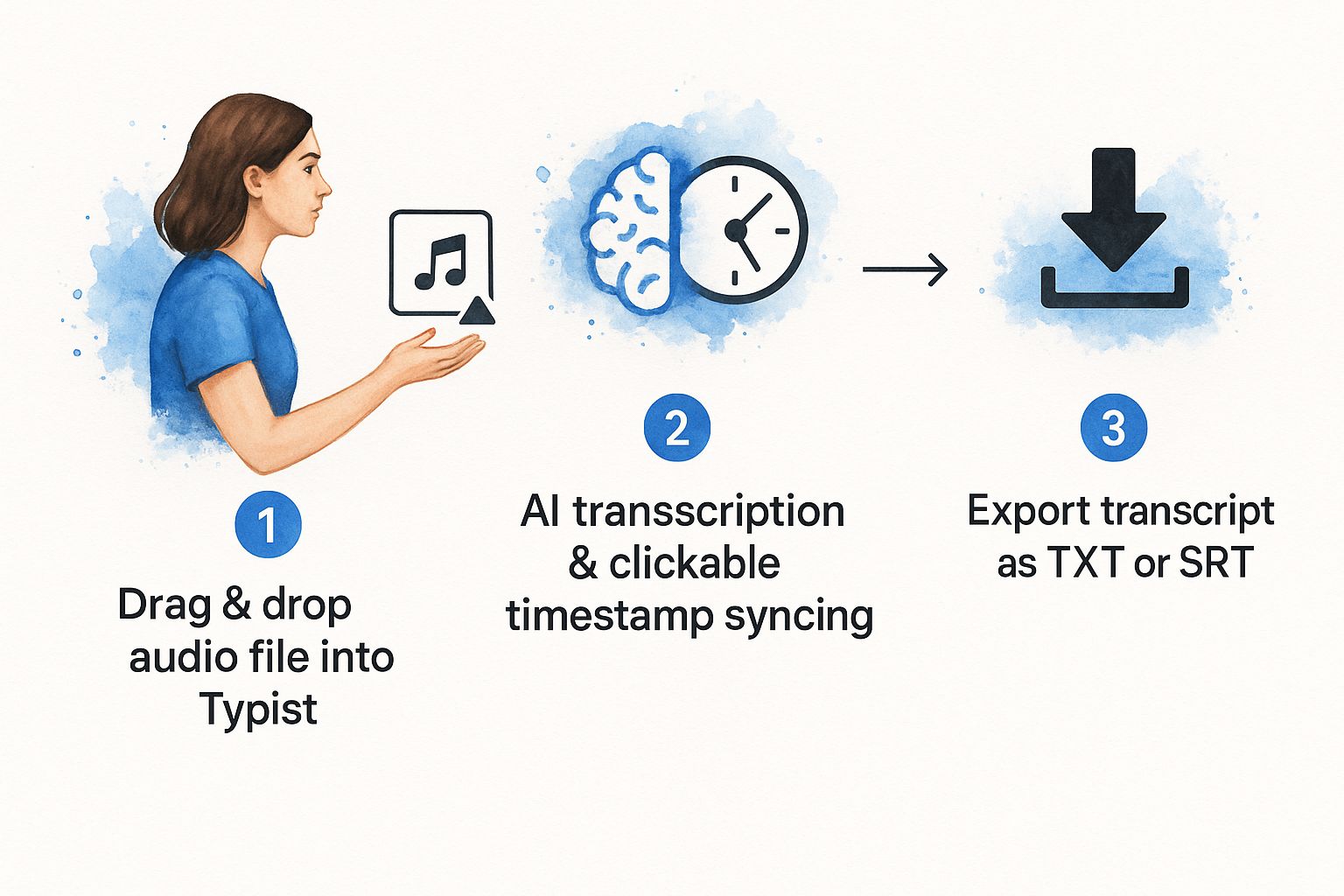
It really is that simple: upload, let the AI work, and export. The real magic here is just how much time this automation saves compared to doing it all by hand.
Getting Your Audio into the System
To get started, you just drag and drop your audio or video file right onto the Typist dashboard. The platform is pretty flexible and handles all the usual file types—MP3, WAV, M4A, MP4—so you don't have to mess around with file converters.
Once your file is uploaded, the AI kicks in immediately. There's no complicated setup or configuration to worry about.
These tools are fundamentally changing how people in fields from healthcare to media work with spoken content.
Fine-Tuning in the Interactive Editor
In just a few minutes, your transcript will pop up ready for you to review. This is where Typist really shines, in my opinion. The text is presented in an interactive editor that’s synced directly with your audio.
My favorite tip: If you click on any word in the transcript, the audio playback instantly jumps to that exact spot. This feature is a massive timesaver. No more endlessly scrubbing through the audio to find one specific phrase you need to check.
The editor also does a great job of identifying and labeling different speakers. This is a lifesaver for interviews, team meetings, or any podcast with more than one person talking. You can easily rename the generic "Speaker 1" and "Speaker 2" labels to the actual names of the participants.
Exporting Your Final Transcript
After a quick proofread to catch any small errors, you're ready to export. Typist gives you a few practical formats to choose from, depending on what you need the transcript for.
- TXT: This is just a simple, plain-text file. It’s perfect for quickly pasting into a blog post, a Word document, or your notes. You can see how straightforward it is to use Typist over on their homepage.
- SRT: This is the go-to format for video subtitles. It's compatible with pretty much everything, including YouTube and video editing software like Premiere Pro.
With just a couple of clicks, you have a professional-quality transcript that you can use for anything from blog content and video captions to meeting minutes or research. It just works.
Polishing Your Transcript to 100% Accuracy
Generate subtitles for any video
Upload MP4 or MOV, export SRT subtitles. Works with Premiere, Final Cut, DaVinci
AI transcription technology has gotten incredibly good, often delivering over 95% accuracy right from the start. But that last 5%? That’s where you step in.
A final, human-powered review is what transforms a solid draft into a flawless document you can confidently publish or hand off to a client. It's the step that separates "good enough" from "perfect."
Even the smartest AI can stumble over the quirks of human speech. Think about homophones ("there" vs. "their"), heavy accents, or super-niche industry slang. These are the little things a quick human edit can catch and fix in minutes.
A Smarter Way to Edit
The best way to proofread is to use the synced audio playback right inside Typist. As you read the text, the audio follows along, highlighting each word as it’s spoken. This simple feature makes it a breeze to spot errors without constantly having to stop, rewind, and replay sections.
Here are the most common things to look out for during your review:
- Speaker Labels: The AI will assign generic labels like "Speaker 1" and "Speaker 2." You'll want to quickly replace those with the actual names for clarity.
- Punctuation: AI does a decent job with punctuation, but it's not a grammar expert. A few well-placed commas or periods can make the text flow much more naturally.
- Jargon and Names: Keep an eye out for misspelled company names, specific products, or technical terms the AI hasn't learned yet. If you're curious about the technology behind this, you can learn more about building the fastest AI audio transcription models.
A few minutes of polish takes your transcript from a rough cut to a final, authoritative resource. You're getting the best of both worlds: the speed of AI and the precision of human intelligence.
Even as AI continues to improve, this human touch is still essential. This is especially true in fields like law or healthcare, where accuracy isn't just a preference—it's a requirement. The future of transcription is undoubtedly this blend of powerful tech and skilled human review.
Ready to see how fast you can polish a transcript?
Export your transcript to SRT, PDF, DOCX, or TXT — all from one upload Try it free
Putting Your Transcripts to Work
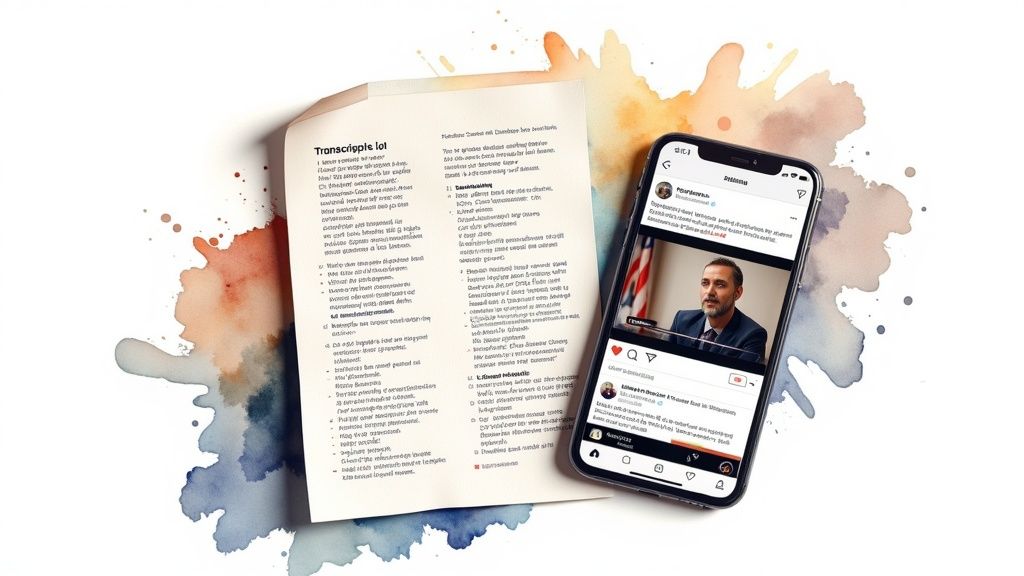
So, you’ve transcribed your audio. Now what? A transcript is so much more than just a wall of text—it’s a goldmine of content waiting to be unearthed. Once you get the hang of turning audio into text, you've essentially built a powerful engine for creating all kinds of new material.
I’ve seen savvy creators turn a single podcast episode into a full week's worth of content. This isn't about cutting corners; it's about working smarter and getting the absolute most out of the time you’ve already invested in recording.
Turning Spoken Words into Engaging Content
Think of your transcript as the raw clay. You can shape it into almost anything to keep your audience engaged on different platforms, all without having to hit the record button again.
Here are a few ways I’ve seen this work brilliantly:
- Create Detailed Blog Posts: Pull the main talking points from an interview and flesh them out into a full-blown article. You've already got the structure and the quotes.
- Generate Social Media Snippets: Scan the transcript for those perfect, punchy quotes or surprising stats. Turn them into eye-catching graphics for Instagram or LinkedIn.
- Craft Email Newsletters: Summarize the key takeaways from a webinar or podcast episode into a quick, valuable email for your subscribers.
People are catching on to the immense value locked away in their audio and video files.
Improve Accessibility and Video Engagement
Beyond just creating new content, transcripts are absolutely essential for making your videos more accessible and effective. With Typist, you can export your transcript as an SRT file in just a couple of clicks to add closed captions to your videos.
This one small step does more than just help viewers who are deaf or hard of hearing. It's a game-changer for everyone. Think about how often you scroll through social media with the sound off—captions are what grab your attention and pull you in.
If you’re working a lot with video, it’s worth diving deeper into techniques like Mastering YouTube AI Transcript Generation to really get the most out of your content.
Your Top Transcription Questions, Answered
If you're just dipping your toes into transcription, you probably have a few questions. I've been there. Let's clear up some of the most common ones so you can get started without any guesswork.
How Fast Is AI Transcription, Really?
This is usually the first thing people ask. Manually transcribing an hour of audio can take, well, hours. But with an AI tool like Typist, that same 60-minute file is typically done in just a few minutes. Seriously. It's fast enough to run during a quick coffee break.
Start transcribing with Typist →
What's the Difference Between Verbatim and Clean Read?
Choosing the right transcription style is a big deal, and it all depends on what you need the text for.
-
Verbatim is the "warts and all" version. It captures every single utterance—every "um," "uh," stutter, and false start. This is absolutely critical for things like legal depositions or in-depth qualitative analysis where every nuance of speech matters.
-
Clean Read (sometimes called "intelligent verbatim") is tidied up for readability. It strips out all those filler words and corrects minor grammatical slips, leaving you with a polished, easy-to-read text. This is what you'll want 99% of the time for content creation, like turning a podcast into a blog post or creating video captions.
For most people creating content, a clean read is the way to go. It gets the message across clearly without the verbal clutter.
Is It Safe to Upload My Sensitive Audio Files?
Security is a perfectly valid concern, especially if you're working with confidential interviews, private meetings, or sensitive research data. So, can you trust an online service with it?
The short answer is yes—if you choose the right one.
Reputable platforms like Typist are built from the ground up with security in mind. They use strong encryption to protect your files from the moment you upload them to the moment you export your transcript. This means you can work on sensitive projects knowing your data stays private.
Once you have a handle on these basics—speed, style, and security—the whole process feels much more approachable.
Transcribe a 1-hour recording in under 30 seconds Try it free