Convert Audio to Text Online Free Your Essential Guide
Learn how to convert audio to text online free with our complete guide. Discover practical tips and the best tools for fast, accurate transcriptions.
Getting your spoken words into a text format used to be a real chore. You'd have to either type it all out by hand or pay a hefty fee for a transcription service. Now, you can do it online, for free, in just a few minutes. Tools like Typist let you drop in an audio or video file and get a surprisingly accurate transcript back almost instantly.
This simple process does more than just save you time; it completely changes what you can do with your spoken content.
Why Bother Converting Audio to Text?
We're surrounded by audio content—podcasts, Zoom meetings, online lectures, interviews. All of that is incredibly valuable, but it's also stuck. You can't search it, you can't easily quote from it, and a huge portion of your potential audience can't access it.
Turning that audio into text isn't just a nice-to-have. It’s a smart way to make your content more accessible, discoverable, and versatile. Sure, you could type it out yourself, but who has the time? The right tool makes it a quick and painless task.
Think about a student trying to find one specific point in a two-hour lecture before an exam. Or a journalist on a tight deadline needing to pull exact quotes from an interview they just finished. These are common situations where a fast, accurate transcript is a lifesaver.
Unlock Your Content's Potential
Once your audio is in text form, it’s suddenly searchable. Someone can hit Ctrl+F and find the exact moment you mentioned a specific topic. You just can't do that with an MP3 file. For anyone creating content online, this is a massive win for SEO. Search engines can finally "read" your podcasts and videos, helping more people find your work.
It also opens the door to a much wider audience. People who are deaf or hard of hearing can now engage with your content. The same goes for non-native speakers who might find reading easier than listening to a fast-talking native.
By turning spoken words into written text, you're not just creating a document. You're creating an asset that can be repurposed into blog posts, social media updates, and detailed show notes, multiplying the reach of your original recording.
Turn Spoken Words into Actionable Insights
In a business setting, transcribing meetings and customer calls is a game-changer. You get a perfect, searchable record of every conversation. No more trying to remember who agreed to what. All the key decisions, action items, and customer feedback are captured accurately and are easy to find later. It puts an end to the "who said what?" confusion.
The benefits are immediate and clear:
- Improved Accessibility: Open your content up to everyone, including those with hearing impairments.
- Enhanced SEO: Let search engines crawl and index the full text of your audio and video, boosting your visibility.
- Easy Repurposing: Spin off a single recording into blog posts, social media captions, or email newsletters with minimal effort.
- Better Organization: Keep precise, searchable records of important conversations for easy reference down the road.
Tools like the AI transcription platform from Typist offer a free, fast, and powerful way to handle all of this. They take a common headache and turn it into a simple, automated process.
Three free transcriptions. No credit card.
See how fast and accurate Typist is — upload your first file in seconds
Getting Your Audio Ready for a Great Transcript
The secret to a fantastic transcript has almost nothing to do with the transcription tool you choose. It all comes down to the quality of the audio you feed it. I've seen it a thousand times: someone uploads a noisy, echo-filled recording and then gets frustrated with the garbled text they get back.
It’s the classic “garbage in, garbage out” problem. If an AI can’t make out what’s being said, it’s just guessing. But if you give it a clean, clear audio file, you’ll be amazed at how accurate the results can be, saving you a ton of editing time.
This graphic really breaks down what a good recording setup looks like.
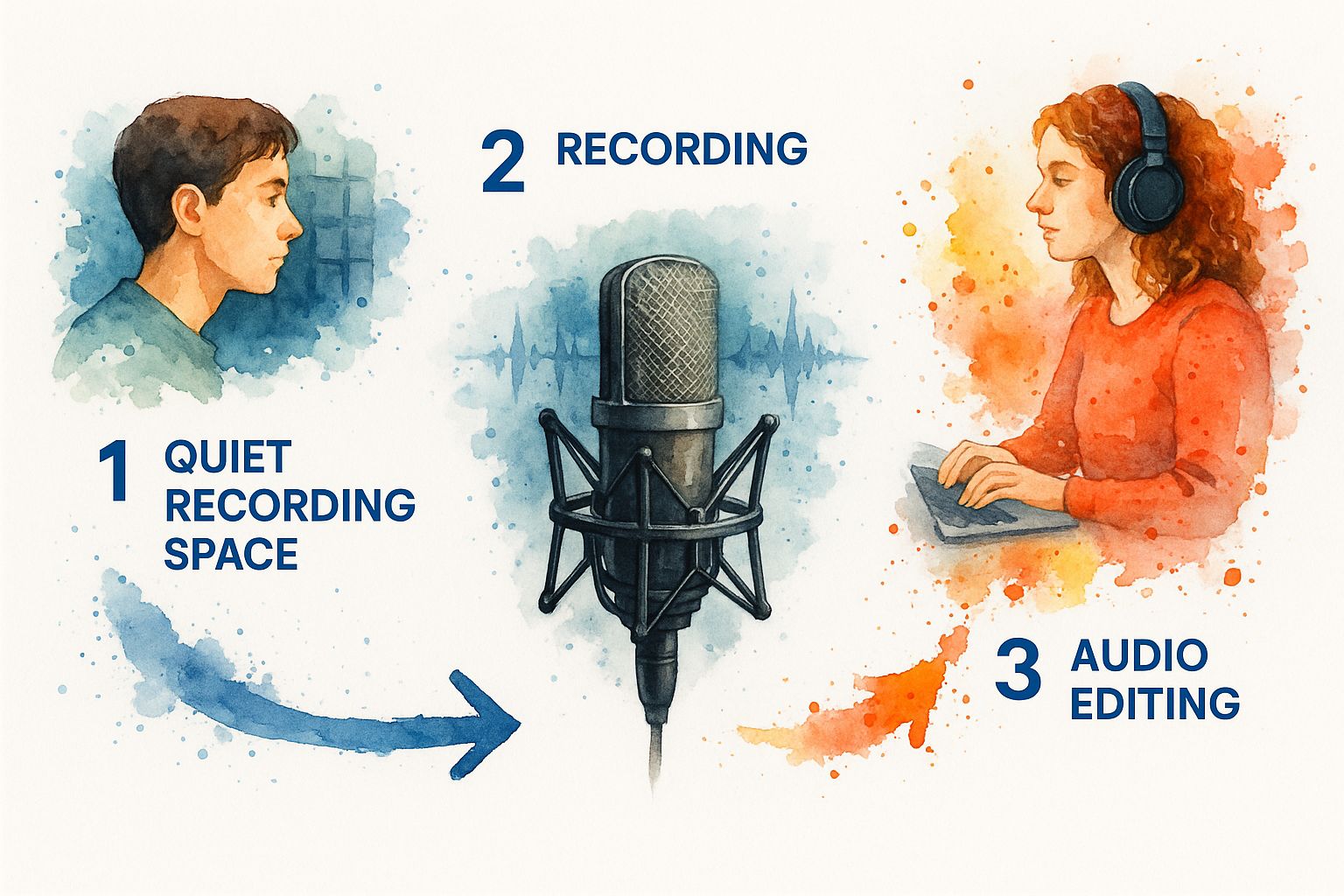
As you can see, it’s all about creating a clean signal for the AI to analyze. Let’s get into the practical steps.
Nail the Recording Environment
You don't need a pro-level studio, but you absolutely need a quiet space. Hard surfaces are your enemy because they create echo and reverb, which really trip up transcription software.
Try finding a small room with plenty of soft things to absorb sound. Think carpets, curtains, or even a walk-in closet packed with clothes. Before you hit record, take a moment to:
- Kill the background noise: Turn off fans, air conditioners, and anything else that hums or whirs.
- Silence your devices: Put your phone and computer on silent. A single notification ping can throw off a sentence.
- Get the mic position right: Aim for about 6-12 inches away from your mouth. This is the sweet spot—close enough for clarity, but not so close that you get harsh "p" sounds or breathing noises.
If you're recording more than one person, the golden rule is one person speaks at a time. Overlapping chatter is the number one killer of transcription accuracy. The AI just can't untangle the voices.
Key Takeaway: Spending five minutes prepping your recording space can easily save you an hour of painful editing on the backend. A clean source file makes any online audio-to-text converter work better.
Choose the Right Audio File Settings
The technical details of your file matter more than you might think. Most of us are used to MP3s because they’re small and easy to share. The problem is, they’re a "lossy" format, meaning audio data is thrown away to shrink the file size.
For transcription, that lost data can mean the difference between the AI hearing "I can't" versus "I can."
Whenever you have the choice, record and save your audio in a lossless format like WAV or FLAC. The files are bigger, sure, but they contain all the original audio information. This gives the AI a much richer, more detailed source to work with, which almost always leads to a better transcript.
This kind of prep work is what gets you those near-perfect results. Under ideal conditions, the best tools can hit up to 98% accuracy, which is a world away from the clunky software of a few years ago. You can read more about the incredible advancements in AI transcription accuracy to see how far things have come.
By getting these details right upfront, you’re basically doing the AI a huge favor. You’re giving it a file so clean that it can focus on its one job: turning your speech into text.
Try Typist free - Get 60 free minutes
Getting Your Hands on a Free Transcript
Alright, with a clean audio file in hand, you're ready for the main event: turning that recording into text. The right tool makes this part surprisingly easy. We’ll use Typist as our example here because its free plan is one of the most generous out there, and the platform is dead simple to use, even if you’ve never done this before.
First things first, you'll need to create a free account. Nearly every online converter, Typist included, asks for this so you have a secure place to manage your files and access your completed transcripts.
Once you’re logged in, you’ll see a big, obvious button to upload your file. This is where you can grab that audio or video file you prepped earlier. Most good tools are flexible, and Typist is no exception—it handles everything from MP3s and WAVs to MP4s and MOVs. Just drag it right into the window.
Before you jump the gun and hit "transcribe," I want to share a little pro-tip that'll save you a ton of editing headaches later on. Let’s look at what makes a good free tool stand out.
I’ve put together a quick table that breaks down the essential features you should look for in any free transcription service. It’s a good checklist to have in your back pocket.
What to Look for in a Free Transcription Tool
| Feature | Why It's Important | How Typist Delivers |
|---|---|---|
| Generous Free Plan | You need enough minutes to actually get work done without hitting a paywall immediately. | Typist offers 60 free minutes, which is more than enough for most casual users. |
| High Accuracy | A bad transcript is almost as useless as no transcript. The AI needs to be precise. | Powered by a state-of-the-art AI model that rivals paid-only services in accuracy. |
| Speaker Identification | If you have interviews or meetings, this feature is non-negotiable for readability. | It automatically detects and labels different speakers (Speaker 1, Speaker 2, etc.). |
| Multiple File Formats | You shouldn't have to convert your files before uploading. The tool should handle it. | Supports a wide range of common audio and video formats right out of the box. |
| Fast Turnaround | You don’t want to wait hours for a simple transcript. Speed matters. | An hour-long file is often transcribed in just a few minutes, not hours. |
| Simple Interface | The process should be intuitive. You're here to save time, not to learn complex software. | A clean, drag-and-drop interface that guides you from upload to export. |
Ultimately, a great free tool isn't just about the cost—it's about giving you a professional-quality result without the friction.
Fine-Tuning Your Transcription for the Best Results
Before you kick off the process, there are a couple of settings you’ll want to double-check. These are small tweaks, but they make a massive difference in the quality of your final transcript.
-
Pick the Right Language: The AI is smart, but it's not a mind reader. You have to tell it what language to listen for. Typist supports over 99 languages, so just find yours in the dropdown menu. This is the single most important setting for accuracy.
-
Turn on Speaker Identification: This is a lifesaver for any recording with more than one person. If you skip this, you’ll get a giant wall of text. By enabling it, the AI neatly labels who said what (e.g., “Speaker 1,” “Speaker 2”), which makes sorting through a conversation a breeze.
Giving the AI this extra context is what separates a jumbled mess from a clean, usable document. The technology behind Typist was specifically engineered for this kind of speed and precision, a fascinating journey detailed in this post on building the fastest AI audio transcription platform.
From Upload to Usable Text in Minutes
With your language selected and speaker identification on, you’re good to go. Hit the transcribe button and let the system work its magic.
The AI gets to work, listening through your file and converting every spoken word into text. How long does it take? It depends on your file’s length, but honestly, modern tools are shockingly fast. I’ve seen hour-long interviews come back in under 10 minutes. You’ll see a progress bar so you know it’s working, and you'll get a notification when it's done.
The whole point is to make this process as hands-off as possible. You feed it a file, give it a little direction, and it handles the rest.
The goal of a free online converter isn't just to give you raw text; it's to provide a structured, easy-to-read document that you can immediately start working with. This efficiency is what makes these tools so valuable.
Beyond just getting your words on paper, it's worth exploring other free AI content creation tools that can help you take that raw transcript and turn it into something more. But for now, with your first transcript ready, the next step is to give it a quick polish.
Record once, transcribe instantly. Search, export, and reference later Try it free
Polishing and Exporting Your Transcript
Okay, so you've uploaded your audio, and the AI has worked its magic. You now have a raw transcript—a fantastic starting point. But let's be honest, even the smartest AI isn't perfect. This is where a little human touch turns a decent transcript into a polished, professional document you can actually use.
Think of the raw transcript as a rough draft. It’s caught most of the words, but it likely fumbled on specific names, industry jargon, or company acronyms. That’s completely normal. A good tool will have an interactive editor that lets you clean things up easily. With a tool like Typist, the audio playback syncs directly with the text, highlighting words as they're spoken.
This is a huge time-saver. No more awkwardly toggling between your audio player and a separate text file, trying to find your place. When you hear a mistake, you just click on that word in the transcript and type the correction. It’s a smooth, intuitive process that keeps you in the flow.
Fine-Tuning for Readability
Once you’ve fixed the glaring mistakes, it's time to focus on making the text easy to read. This is less about correction and more about refinement.
A few quick edits can make all the difference:
- Name Your Speakers: The AI probably labeled everyone as "Speaker 1" or "Speaker 2." Take a minute to change those generic labels to actual names, like "Maria" and "David," to give the conversation context.
- Fix Awkward Paragraphs: Sometimes, the AI creates a new paragraph every time a person pauses for breath. You can easily merge these little text snippets into more substantial, logical paragraphs that flow better.
- Add the Right Punctuation: The AI is pretty good with basic commas and periods, but it can’t always capture a speaker's tone. Go through and add in those question marks or exclamation points to bring the text to life.
These small tweaks are what elevate a transcript from a jumble of words to a genuinely useful document.
Choosing the Best Export Format for Your Needs
With your edits done, the final step is exporting the file. The format you pick really depends on what you're going to do with it next. Typist gives you a few key options to cover the most common uses.
Pro Tip: Think ahead! Choosing the right format now saves you a ton of reformatting headaches later. Don't just grab a plain text file out of habit unless that's truly all you need.
Here’s a quick guide to the most popular formats:
- TXT (.txt): This is your basic, no-frills option. It's just the text, plain and simple. It’s perfect if you plan to copy and paste the content into an email, a social media post, or a simple document.
- DOCX (.docx): If you're building a formal report, article, or meeting minutes, this is the one you want. It keeps formatting like bolded speaker names and paragraph breaks intact, so it’s ready to open in Microsoft Word or Google Docs for further work.
- SRT (.srt): This is the gold standard for video subtitles. An SRT file contains not just the text but also the precise timestamps needed to sync the words with your video. If you're creating content for YouTube, Vimeo, or social media, this format is essential.
By choosing the right file type from the get-go, you make your transcript immediately ready for its next step. If you have any questions about usage, you can always check out the Typist terms of service.
Try Typist free - Get 60 free minutes
Creative Ways to Use Your Transcribed Text
So you've turned your audio into text. What now? Don't let that transcript just sit there collecting digital dust. The raw text file is your starting point, not the finish line.
Think of it as raw material. That one recording—whether it's an interview, a webinar, or a solo podcast episode—is a goldmine. With a little creativity, you can slice it, dice it, and reshape it into a ton of different content pieces that can reach people in entirely new ways.
Turn a Single Recording into Multiple Content Pieces
This is where you get to work smarter, not harder. Content repurposing is one of the best things you can do with a good transcript. It’s all about taking one core idea and spinning it out into different formats for different platforms.
Here are a few ways this works brilliantly:
- Create SEO-Rich Blog Posts: A full transcript from a podcast or video is an absolute gift for search engines. Publishing it on your website gives Google and Bing thousands of words to crawl, which can seriously improve your chances of showing up for niche, long-tail keywords.
- Pull Quotes for Social Media: Scan through your transcript and look for those little gems—the punchy one-liners, the surprising stats, or the really insightful takeaways. These are perfect for creating quote graphics for Instagram, quick thoughts for X (formerly Twitter), or conversation starters on LinkedIn.
- Build Detailed Show Notes: If you're a podcaster, a transcript makes creating killer show notes a breeze. You can easily pull out all the key topics, names, and resources you mentioned, and even add timestamps. This adds a ton of value for your listeners who want to dig deeper.
Once you have that text in hand, you can explore all kinds of smart content repurposing strategies to get the most mileage out of every single recording.
Analyze and Extract Key Insights
But transcripts aren't just for content creation. They're also a source of incredibly valuable data. Think about all the audio you might have from customer interviews, user feedback sessions, or team meetings. Transcribing it turns all that spoken information into a searchable database.
Instead of trying to remember what someone said, you can just hit Ctrl+F and search for keywords like "frustrating," "confusing," or "love this feature." This quickly reveals patterns in how people feel and what they're saying.
This is how you turn messy, qualitative feedback into clear, actionable intelligence. You can easily spot common customer pain points, identify frequently asked questions for your support team, and pull direct quotes to share with your product developers. You’re essentially turning conversations into a report your whole team can use.
Answering Your Top Questions About Online Audio Transcription
If you're converting audio to text online for the first time, you probably have a few questions. That's completely normal. Most people wonder about privacy, accuracy, and what the catch is with "free" tools. Let's tackle those common concerns head-on.
One of the biggest worries is always data security. You're uploading your files, which could contain sensitive information, to a website. It’s smart to be cautious. A trustworthy platform like Typist prioritizes your privacy; files are encrypted from the moment you upload them, and they're never seen by human eyes. You can always dig into the specifics by reading the Typist privacy policy.
Another big question is about accuracy. How good can a free tool really be? Honestly, AI transcription technology has gotten incredibly good over the last few years. While the quality of your original audio is still the most important factor, a modern AI can often produce a transcript that's just as accurate as a human's, especially for clear recordings without a lot of background noise.
So, How Much Can I Actually Transcribe for Free?
This is where the rubber meets the road. Most free online converters set limits, usually on how many files you can upload or the total minutes you can process in a day or month.
Typist, for instance, gives you 60 free minutes. For most people—students transcribing lectures, content creators prepping video captions, or professionals documenting a meeting—that’s plenty. It’s more than enough to handle your day-to-day needs without ever hitting a paywall.
The point of a good free plan isn't to force an upgrade. It's to give you a genuinely useful tool that solves your problem right now. A few highly accurate transcripts are way more valuable than unlimited, sloppy ones.
What Happens To My Files When I'm Done?
It's natural to wonder where your audio files go after the transcription is finished. Different services handle this differently. Some delete them right away, while others might hold onto them for a little while in case you need to access them again.
Typist's free plan keeps your files for seven days. This gives you a nice window to download your text, make any edits, and be sure you have everything you need before the original file is permanently and securely deleted. It's a solid balance between being convenient and protecting your privacy.
The need for services like this is exploding. The online transcription market hit a value of USD 10.5 billion in 2024 and shows no signs of slowing down, thanks to remote work and the endless creation of digital content. You can learn more about the growth of the transcription market if you're curious. All this competition is great for users, as it means even the free tools are getting better and more powerful all the time.
Ready to give it a shot? Typist can turn your audio into text in just a few minutes.
Upload a file. Get text back. That simple. Try it free